

Prerequisites
Before you can configure and use Excel with CData Connect Spreadsheets, you must first connect a data source to your CData Connect Spreadsheets account. See Set Up Connection for more information. Connect AI customers only: You can also import Workspaces and Derived Views. To create a workspace, follow the instructions in Workspaces. To create a derived view (administrators only), follow the instructions in Creating a Derived View.Install the Add-In
You can install the Excel add-in from the CData Connect Spreadsheets dashboard or from Excel.From the CData Connect Spreadsheets Dashboard
On the Launch page, click try using Office Online (for Excel for the web).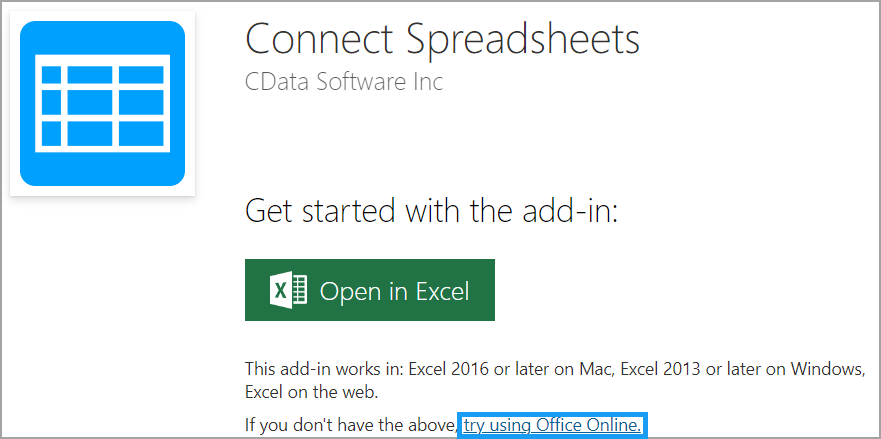
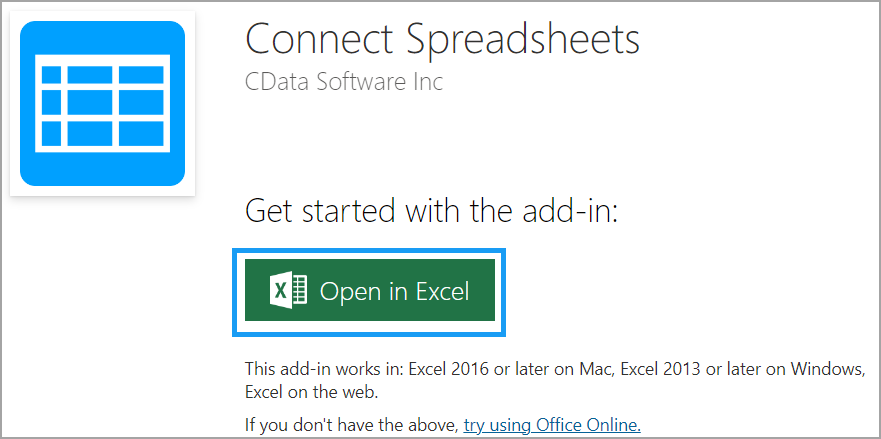
Continue to the steps in Connect to CData Connect Spreadsheets.
From Microsoft Excel
Search for CData in the window. In the search results, click Add next to CData Connect Spreadsheets.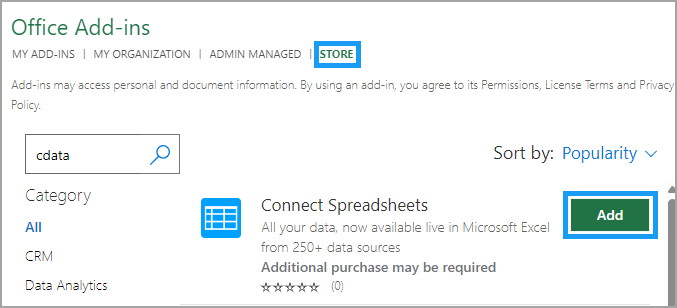
Click Continue to agree to the license terms. An authorization dialog opens in your Excel workbook.
Continue to the steps in Connect to CData Connect Spreadsheets.
Connect to CData Connect Spreadsheets
After you install the Excel add-in, follow these steps to connect to your CData Connect Spreadsheets account: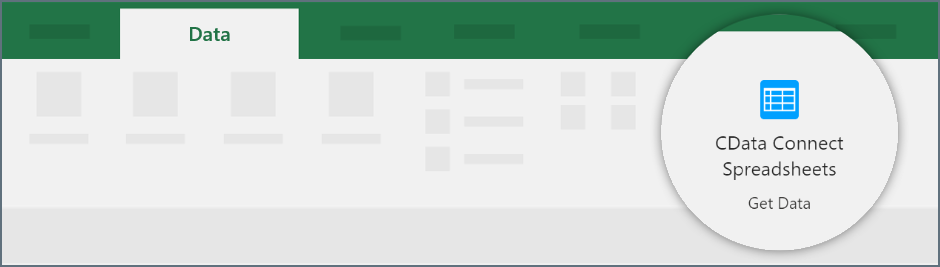
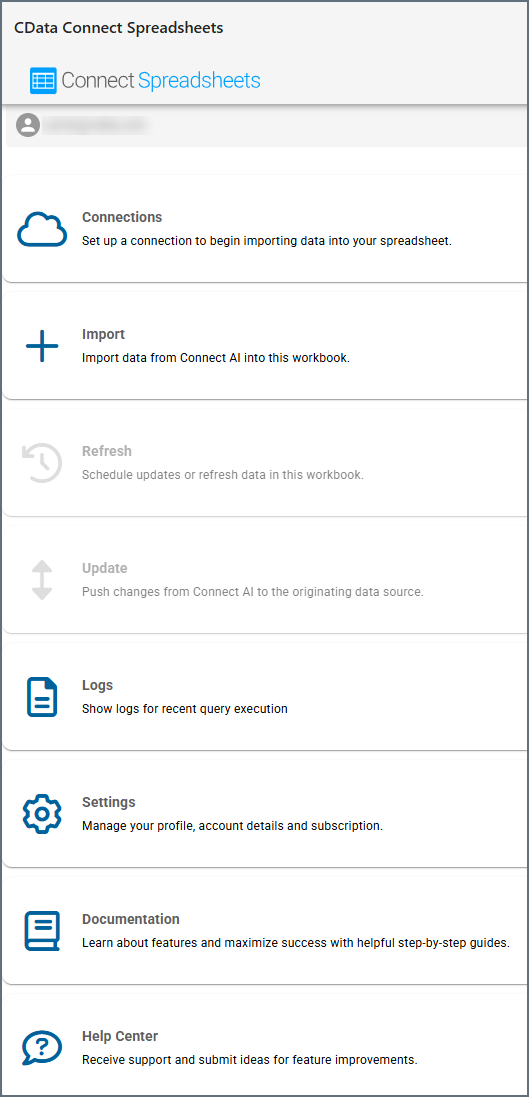
Set Up Connection
If you do not yet have the data connection you need for CData Connect Spreadsheets, you need to set one up.Enter your data connection settings. Save and test your connection.
After you have a successful connection, you can Import Data.
You can also use the Connections option to edit existing connections.
Import Data
To import data from CData Connect Spreadsheets to Excel, follow these steps:Only Connect AI customers can access workspaces and derived views.
Import Connections
Select either Query Builder to build the query in steps or Custom SQL to enter a query manually.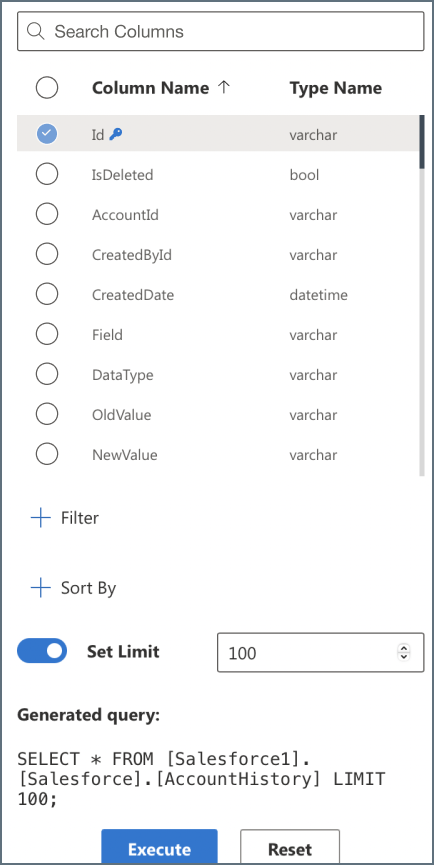
- For Query Builder, select a schema (if there are multiple schemas), table, and columns. You can search by column name. If desired, you can also set filters, sorting options, and limits. View the generated query and adjust if necessary.
- For Custom SQL, enter the SQL Statement in the provided field.
Import Workspaces (Connect AI Customers Only)
Select Query Builder to build the query in steps or select Custom SQL to enter a query manually.
- For Query Builder, select a workspace and the columns to display. You can search by column name. If desired, you can also set filters, sorting options, and limits. View the generated query and adjust if necessary.
- For Custom SQL, enter the SQL Statement in the provided field.
Import Derived Views (Connect AI Customers Only)
Select Query Builder to build the query in steps or select Custom SQL to enter a query manually.
- For Query Builder, select a workspace and the columns to display. You can search by column name. If desired, you can also set filters, sorting options, and limits. View the generated query and adjust if necessary.
- For Custom SQL, enter the SQL Statement in the provided field.
Refresh Data
Once your data is imported, you can set it to periodically refresh automatically. You can also perform a manual refresh of your spreadsheet data. The automatic refresh overwrites any uncommitted data. If you are only reading data, the automatic update is not an issue. If you have enabled auto refresh and are writing data, commit your changes often with the Update button. You must have the Excel workbook open in the browser in order for the automatic refresh to work properly. In addition, the automatic refresh will not execute if the workbook is idle for over 15 minutes.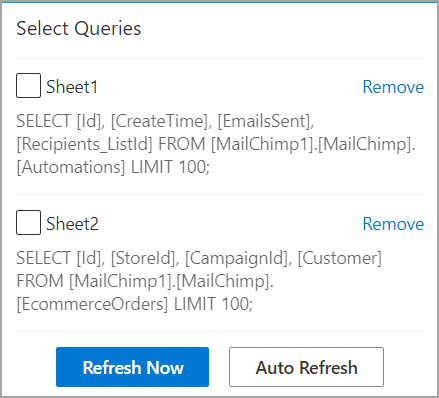
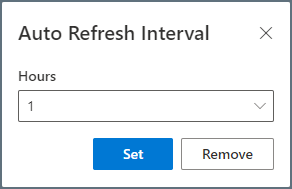
Note that the refresh interval is set in hours, and one hour is the minimum interval between refreshes. If the auto-refresh fails, the Excel add-in will attempt the auto-refresh two more times. After the third fail, the next auto-refresh attempt will occur at the next user set interval.
Update Data
You can push changes from the Excel spreadsheet to the originating data source. Note that in order to update a spreadsheet, the data must contain at least one primary key. You must also have the proper permissions to update the source data. Be sure to update your data frequently if you are using the auto refresh feature, or your changes may be overwritten.CData Connect Spreadsheets does not support updates for views (only tables).
Delete Data
CData Connect Spreadsheets does not support deletion for views (only tables).
Logs
Click Logs to open a dialog that lists the most recent queries, including:- The time and date they occurred
- Their results (success or failure)
- The contents and parameters of the queries
Settings
Click Settings to view and manage your profile, account details, and subscription.Advanced Query Settings
When importing data, you can use Filters and Sorting to build your query. For SQL queries, you can use the advanced options Parameterized Queries and Searchable Spreadsheets.Filters
To add a filter, click the + next to the Filters header. You can add more filters by clicking the + again, and you can delete a filter by clicking the trash can icon next to it.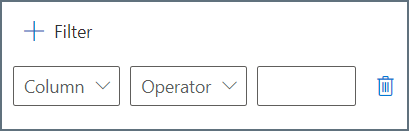
- Column—select the column from your table that you want to filter.
- Operator—the operation the filter performs. Options are equals, does not equal, contains, does not contain, less than, less than or equal to, greater than, and greater than or equal to.
- Value—the value for the filter operation.
Sorting
To add a sorting rule to your query results, click the + next to the Sort By header. You can add more sorting rules by clicking the + again, and you can delete a sorting rule by clicking the trash can icon next to it.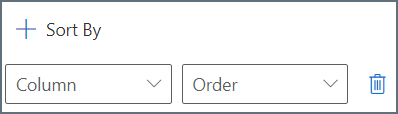
Write Parameterized Queries
You can create dynamic spreadsheets by referencing cells in your custom SQL statement. The Excel add-in executes the statement as a parameterized query. As you change the values in the sheet, the Excel add-in executes a new query.Create Searchable Spreadsheets
Use a parameterized SELECT WHERE query to create a spreadsheet that dynamically filters the data as you edit cells. The following filter criteria references the@InputSheet!A2 parameter, which is cell A2 of the sheet InputSheet. The @ prefix indicates that Industry is a required parameter.