

Prerequisites
Before you connect, you must first do the following:- Connect a data source to your Connect AI account. See Sources for more information.
- Generate a Personal Access Token (PAT) on the Settings page. Copy this down, as it acts as your password during authentication.
- If you are connecting to Connect AI using Alteryx Desktop, you must have the Microsoft ODBC Driver for SQL Server installed. Click here for the download.
Connect to Connect AI from Alteryx Desktop
To establish a connection from Alteryx Desktop to the Connect AI Virtual SQL Server API, follow these steps.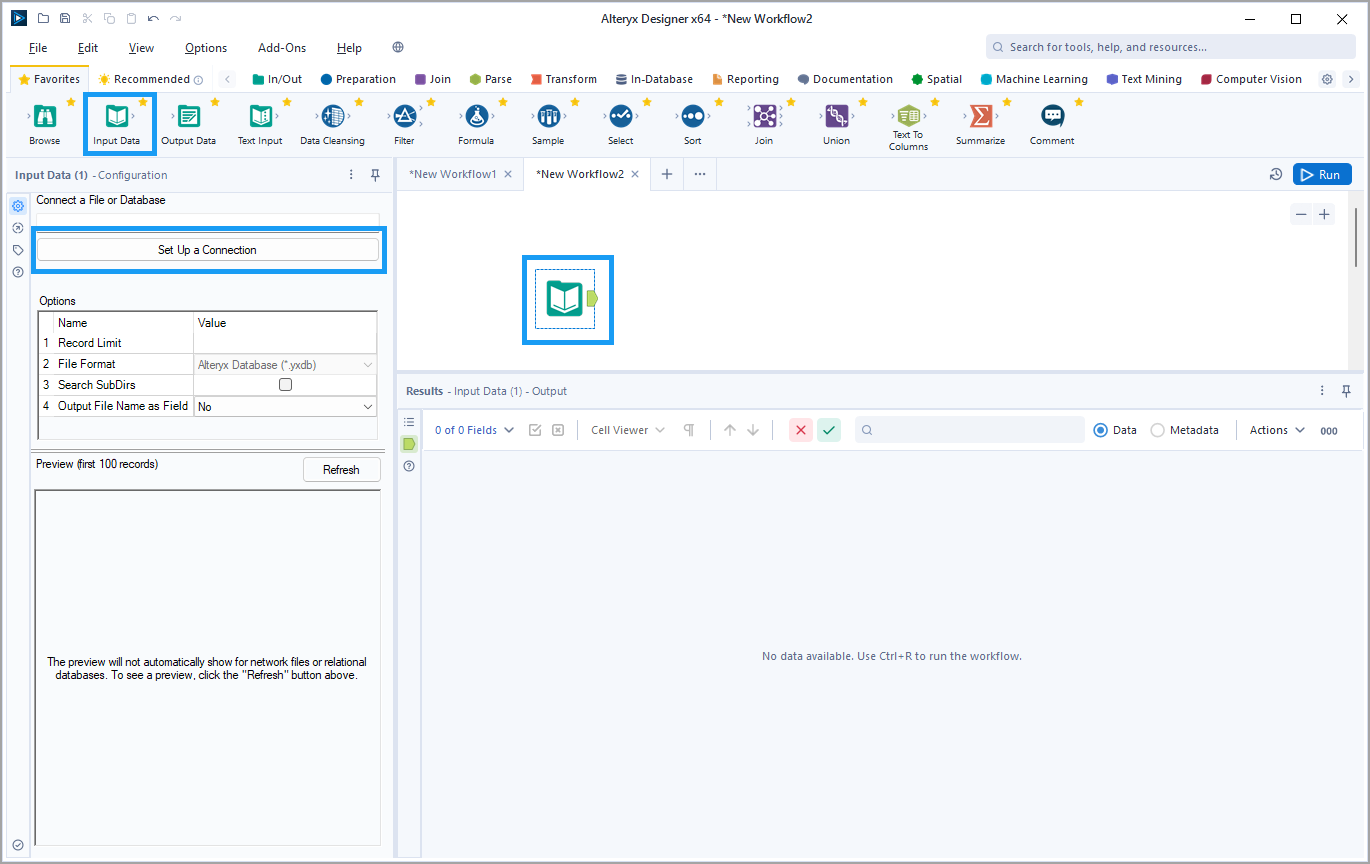
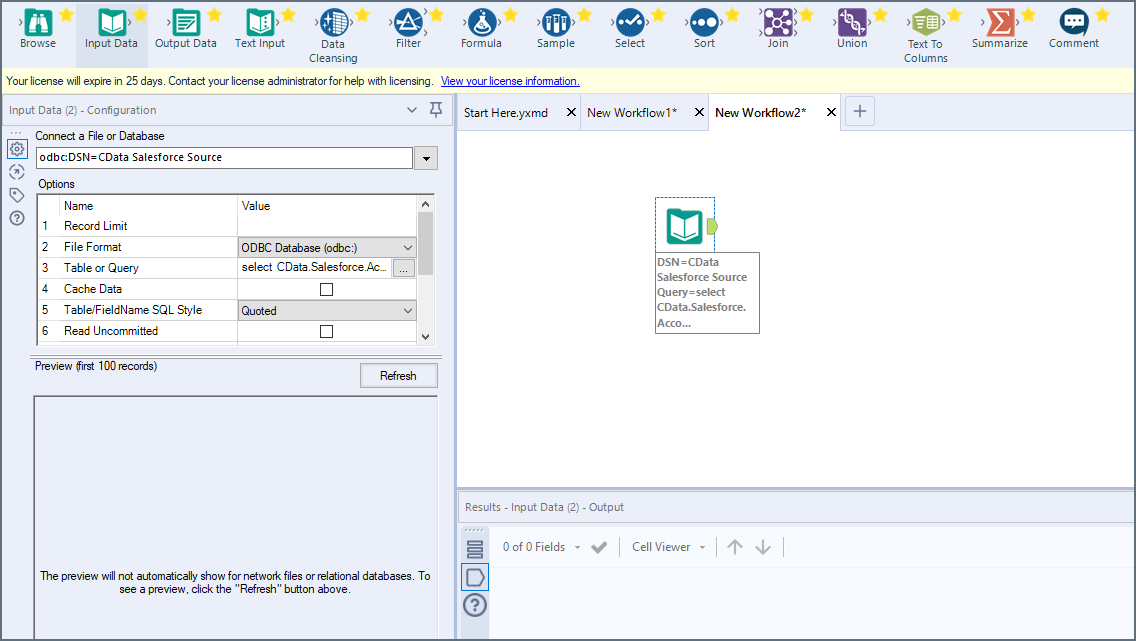
While the Input Data tool is selected, click Set Up a Connection in the navigation pane. A Data connections dialog appears.

In the New Data Source dialog, enter the following information: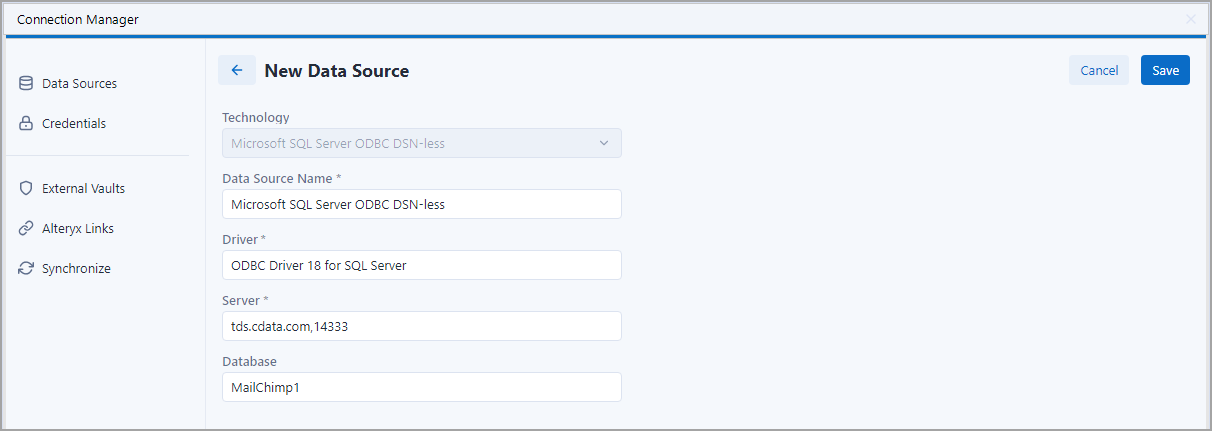
- Data Source Name—Microsoft SQL Server ODBC DSN-less.
- Driver—select ODBC Driver 18 for SQL Server from the drop-down list.
- Server—tds.cdata.com,14333
- Database—enter the Connection Name of the Connect AI data source you want to connect to (for example, Salesforce1).
In Connections, enter the following:
- Authentication Method—select Username and password.
- Credential—select Create New Credential.
- Credential Name—enter a name to identify the credential.
- Username—enter your Connect AI username. This is displayed in the top-right corner of the Connect AI interface. For example, test@cdata.com.
- Password—enter the PAT you generated on the Settings page.
In the wizard that opens, drag and drop the table to be queried in the Query Builder box. Select the fields by checking the boxes that you want to include in your query. Where possible, the complex queries generated by the filters and aggregations will be pushed down to your data source, while any unsupported operations (which can include SQL functions and JOIN operations) will be managed client-side by the CData SQL engine embedded in the connector.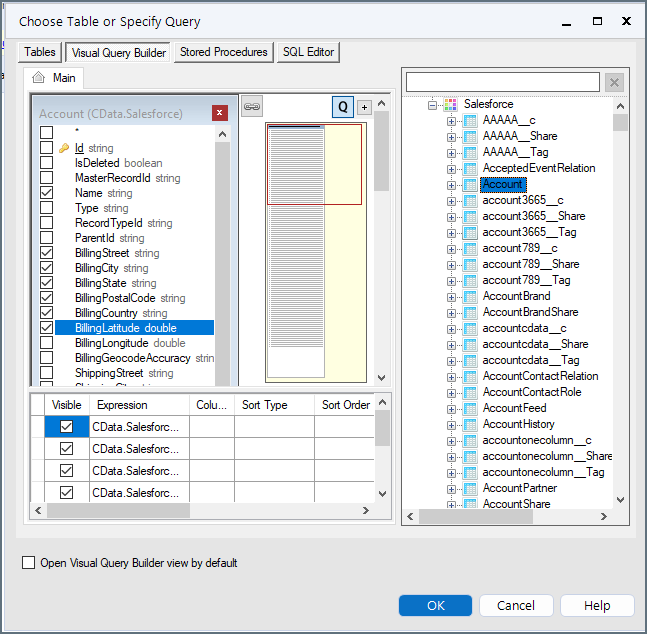
To further customize the dataset, you can open the SQL Editor and modify the query manually, adding clauses, aggregations, and other operations to ensure that you are retrieving exactly the data desired.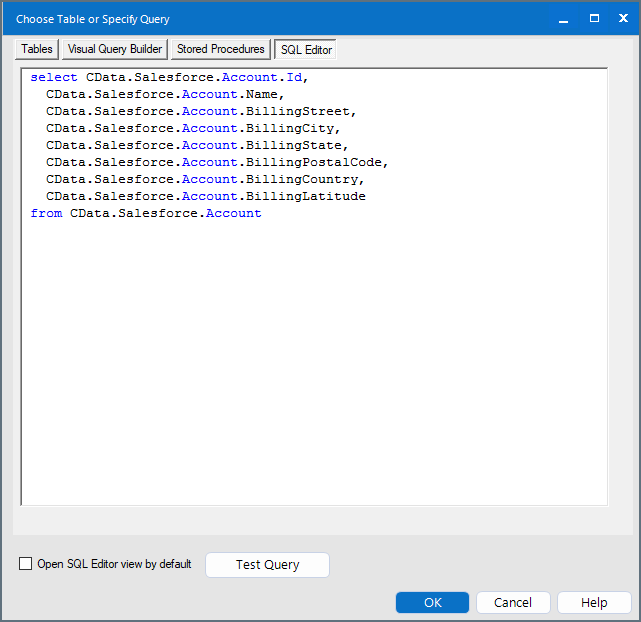
Connect to Connect AI from Alteryx Cloud
To establish a connection from Alteryx Cloud to the Connect AI Virtual SQL Server API, follow these steps.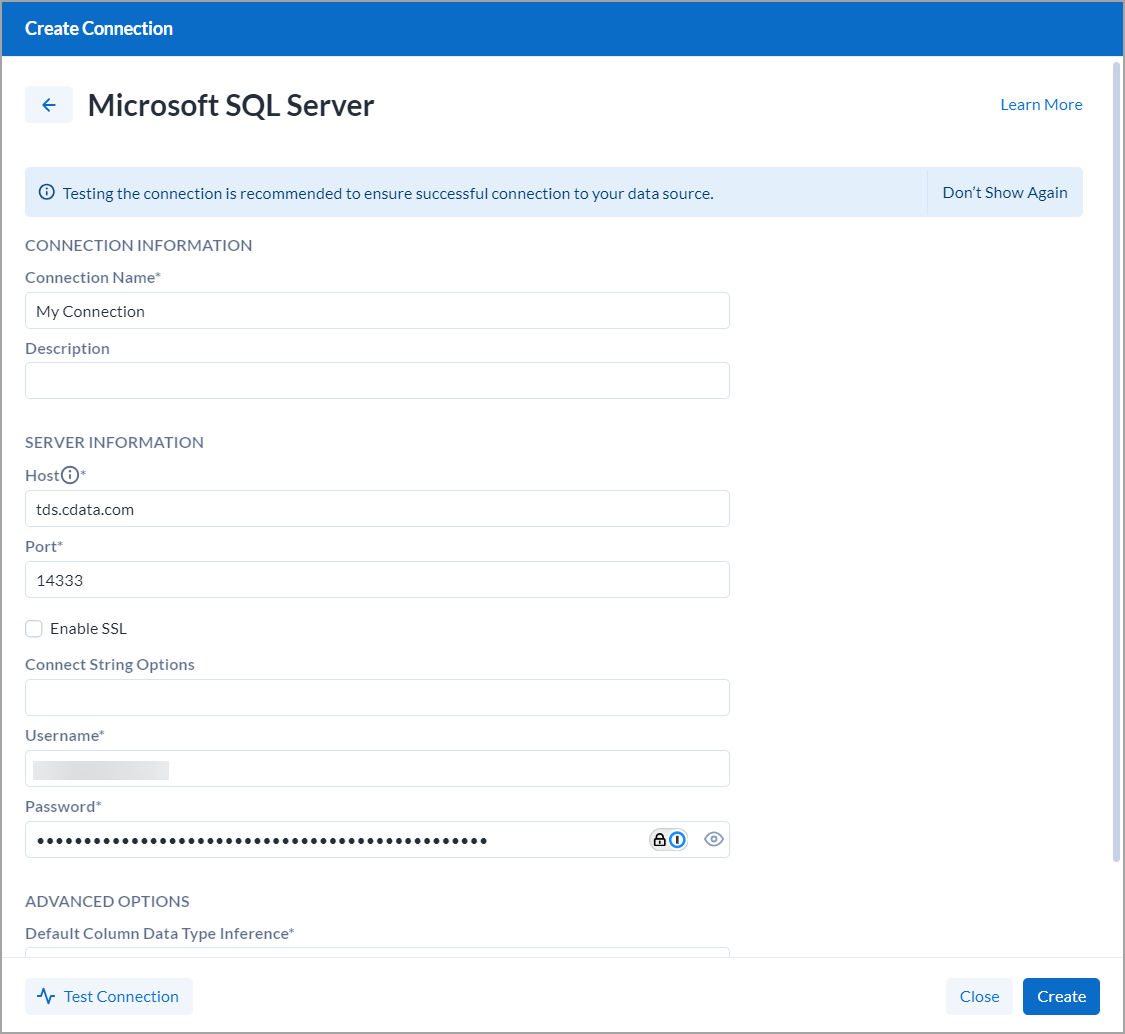
Enter the following information:
- Connection Name—the name of your data connection for display purposes.
- Host—tds.cdata.com
- Port—14333
- Username—enter your Connect AI username. This is displayed in the top-right corner of the Connect AI interface. For example, test@cdata.com.
- Password—enter the PAT you generated on the Settings page.
