Prerequisites
Before you connect, you must first do the following:- Connect a data source to your Connect AI account. See Connections for more information.
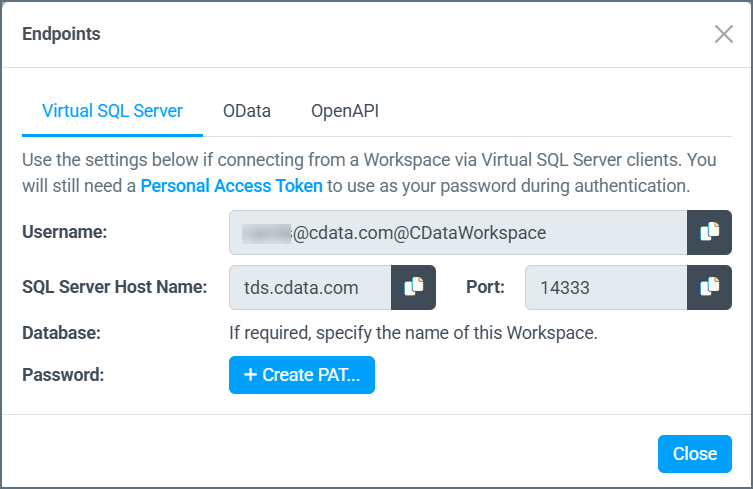
- Generate a Personal Access Token (PAT) on the Settings page. Copy this down, as it acts as your password during authentication.
- If you want to connect to a workspace rather than a data source, first Add a workspace to Workspaces.
Connect to Connect AI
To establish a connection from Tableau Cloud to the Connect AI Virtual SQL Server API, follow these steps.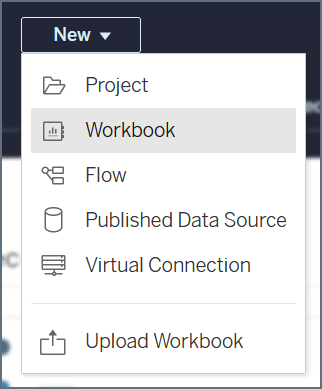
On the Connect to Data dialog, select the Connectors tab. In the connectors list, select Microsoft SQL Server.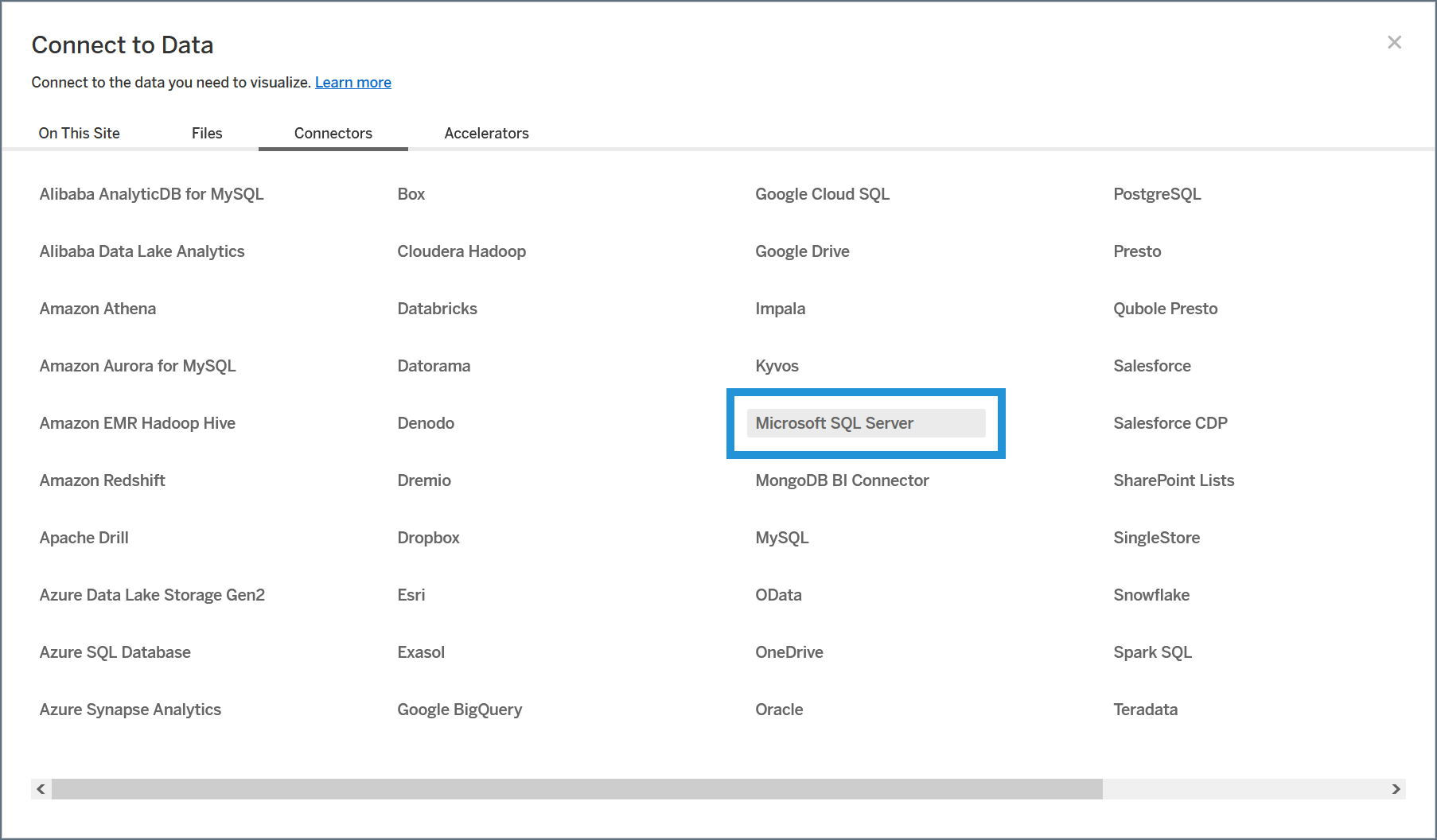
Enter the connection settings.
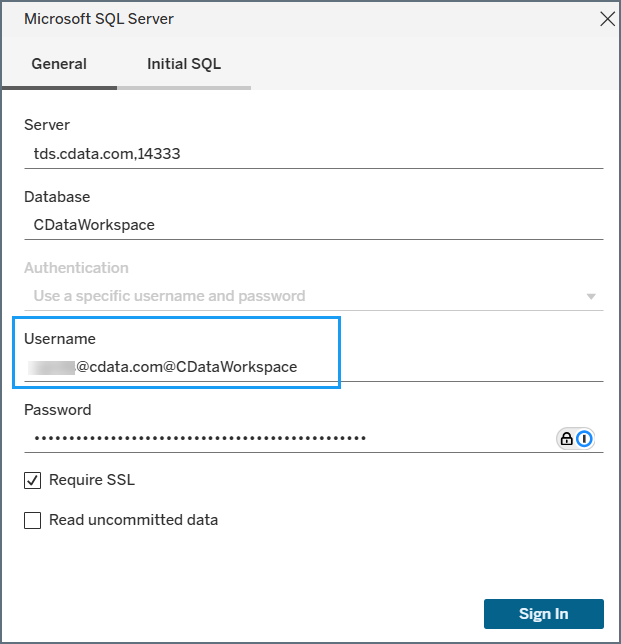
- Server—enter the Virtual SQL Server endpoint and port separated by a comma: tds.cdata.com,14333
- Database—enter the Connection Name of the Connect AI data source you want to connect to (for example, Salesforce1).
- Authentication—leave this as username and password.
- Username—enter your Connect AI username. This is displayed in the top-right corner of the Connect AI interface. For example, test@cdata.com.
- Password—enter the PAT you generated on the Settings page.
- Require SSL—leave this selected.
Once the connection succeeds, your data is available to use in your workbook. Follow these steps to access it:
In the Database section of the data pane, select the data source that you want to use. The tables for that data source populate in the Table section.
Modify a Connection
You can modify your connection by following these steps: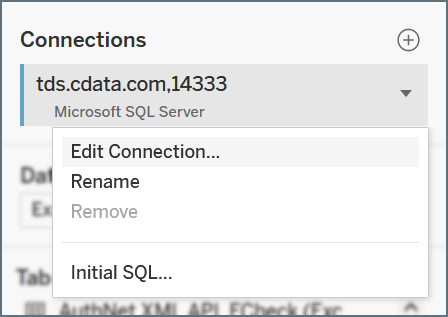
Connect to a Workspace
To connect Tableau Cloud to a specific workspace in Connect AI, you specify the workspace name after the Connect AI username in the format of[your_email_address]@[workspace_name]: