Prerequisites
Before you can configure and use Google Sheets with Connect AI, you must first connect a data source to your Connect AI account. See Sources for more information. Connect AI Customers Only: You can also import Workspaces and Derived Views. To create a workspace, follow the instructions in Workspaces. To create a derived view (administrators only), follow the instructions in Create a Derived View.Installation and Setup
Sign in to Google Sheets and either open a spreadsheet or create a new spreadsheet.
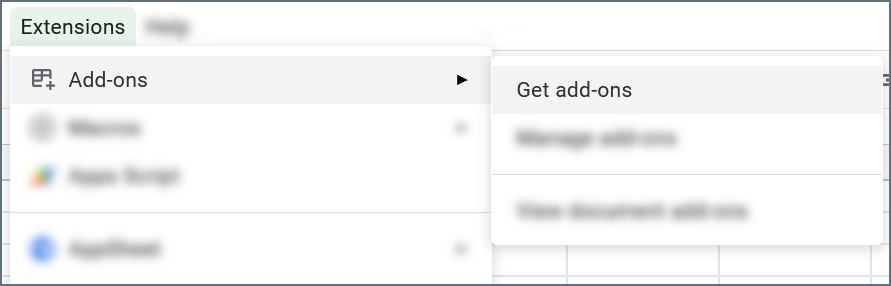
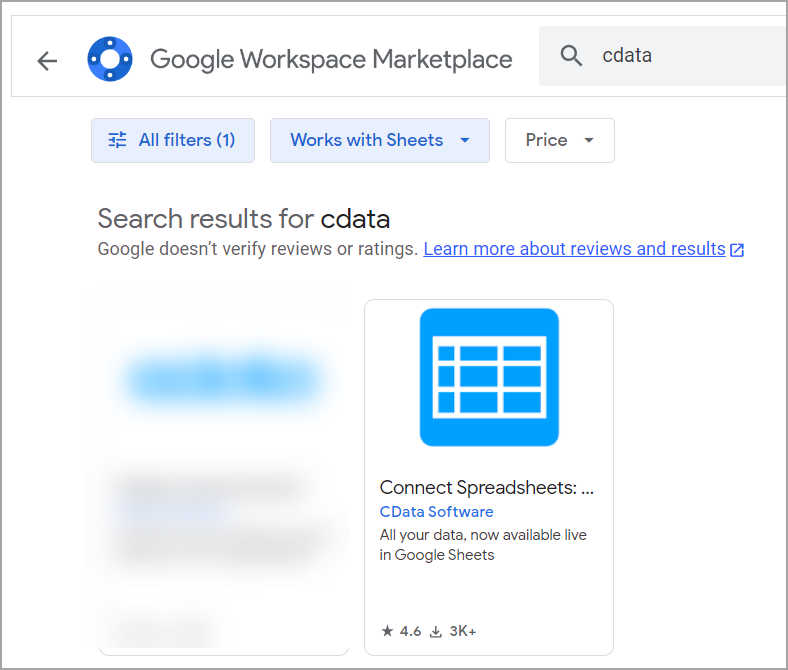
Select your Google account and sign in if needed. When prompted to approve the connection, click Allow.
The configuration pane appears to the right of your spreadsheet. Click Authorize to sign in to CData Connect Spreadsheets.
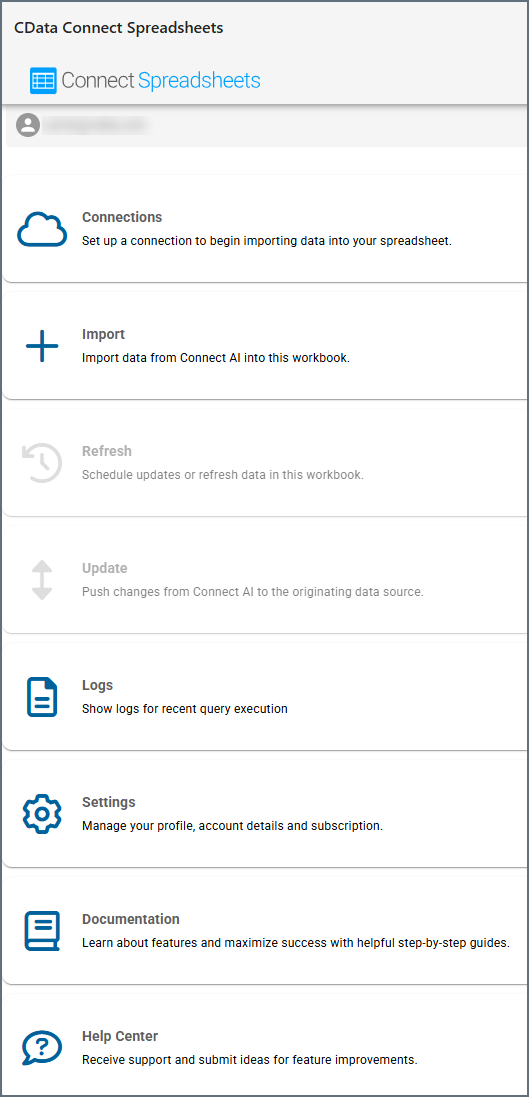
Set Up Connection
If you do not yet have the data connection you need for CData Connect Spreadsheets, you need to set one up.Select the connector for the data you want to connect to Google Sheets. Use the Search field to find the connector.
Enter your data connection settings by following the instructions on the connection page. Save and test your connection.
After you have a successful connection, you can Import Data.
You can also use the Connections option to edit existing connections.
Import Data
To import data from a data connection, follow these steps:Only Connect AI customers can access workspaces and derived views.
Import Connections
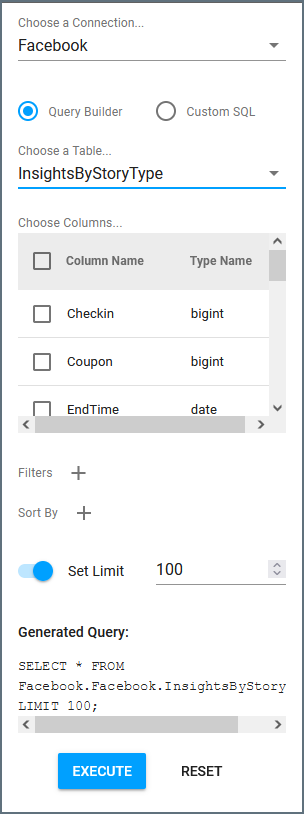
Select either Query Builder or Custom SQL.
- For Query Builder, select a schema (if there are multiple schemas), table, and columns. If desired, you can also set filters, sorting options, and limits. View the generated query and adjust if necessary.
- For Custom SQL, enter the SQL Statement in the provided field.
Import Workspaces (Connect AI Customers Only)
Select either Query Builder or Custom SQL.
- For Query Builder, select a workspace and the columns to display. If desired, you can also set filters, sorting options, and limits. View the generated query and adjust if necessary.
- For Custom SQL, enter the SQL Statement in the provided field.
Import Derived Views (Connect AI Customers Only)
Select either Query Builder or Custom SQL.
- For Query Builder, select a derived view and the columns to display. If desired, you can also set filters, sorting options, and limits. View the generated query and adjust if necessary.
- For Custom SQL, enter the SQL Statement in the provided field.
Refresh Data
To update the imported data in your spreadsheets from the originating source, click Refresh in the main menu of the CData Connect Spreadsheets add-on. (Click the back arrow to return to the main menu of the add-on, if necessary.) Then follow these steps: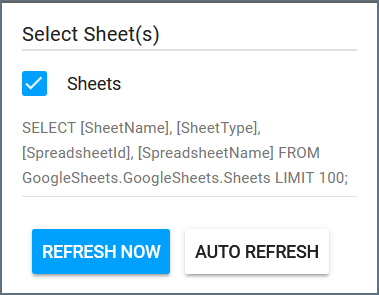
Select a refresh option:
- Click Refresh Now to manually refresh the data as soon as possible.
- Click Auto Refresh to open a dialog where you can select the auto-refresh interval in hours. Please note that this interval applies to all spreadsheets that use Auto Refresh.
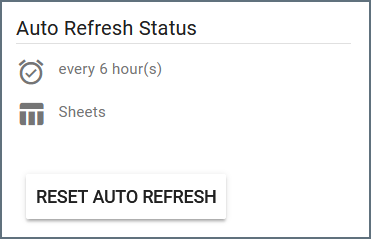
If Auto Refresh is selected, a new Auto Refresh Status field appears. It lists the refresh interval and the affected spreadsheets. A Reset Auto Refresh button allows you to stop the auto refresh and set up a new one.
Update Data
You can push changes from the Google Sheets spreadsheet to the originating data connection. Note that in order to update a spreadsheet, the data must contain at least one primary key. You must also have the proper permissions to update the source data. You cannot update read-only fields in the originating data connection. Be sure to update your data frequently if you are using the auto refresh feature, or your changes may be overwritten by the originating data connection.CData Connect Spreadsheets does not support updates for views (only tables).
Make your changes to the Google Sheets spreadsheet. When you update data, the data is highlighted in red to signify that it is not yet updated to the originating data connection.
Click Execute. Click Confirm to continue. This action updates the originating data connection and cannot be undone.
CData Connect Spreadsheets returns a message whether the update was successful. If unsuccessful, CData Connect Spreadsheets displays the reason the update failed.
Insert Data
To insert a row or rows in a spreadsheet, follow these steps:Enter the information into the row or rows. When you add data, the data is highlighted in red to signify that it is not yet updated to the originating data connection.
Click Execute. Click Confirm to continue. This action inserts the data into the originating data connection and cannot be undone.
CData Connect Spreadsheets returns a message whether the insertion was successful. If unsuccessful, CData Connect Spreadsheets displays the reason the insertion failed.
Delete Data
CData Connect Spreadsheets does not support deletion for views (only tables).
Select the rows you want to delete and click Delete. You can select any cell(s) in the row and CData Connect Spreadsheets deletes the entire row. CData Connect Spreadsheets prompts if you are sure you want to delete the given number of rows.
You cannot undo the row deletion.
Logs
Click Logs to open a dialog that lists the most recent queries, including:- The time and date they occurred
- Their results (success or failure)
- The contents and parameters of the queries
Advanced Query Settings
When importing data, you can use Filters and Sorting to build your query.Filters
To add a filter, click the + next to the Filters header. You can add more filters by clicking the + again, and you can delete a filter by clicking the trash can icon next to it.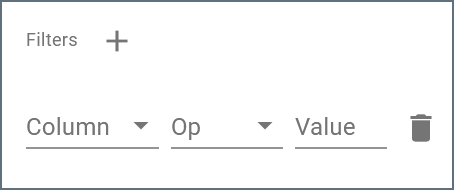
- Column—select the column from your table that you want to filter.
- Op—the operation the filter performs. Options are equals, does not equal, contains, does not contain, less than, less than or equal to, greater than, and greater than or equal to.
- Value—the value for the filter operation.
Sorting
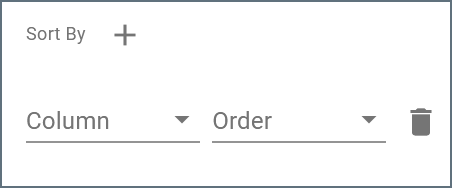
To add a sorting rule to your query results, click the + next to the Sort By header. You can add more sorting rules by clicking the + again, and you can delete a sorting rule by clicking the trash can icon next to it.