

Prerequisites
Before you can use the Query Builder, you must properly configure a connection within Connect AI. For more information about configuring a connection, see Sources. You can select any of your pre-made connections to query.Query Builder
To access the Query Builder, click Build Query in the home page of Data Explorer. You can also access the Query Builder by clicking the add tab button and selecting Query Builder: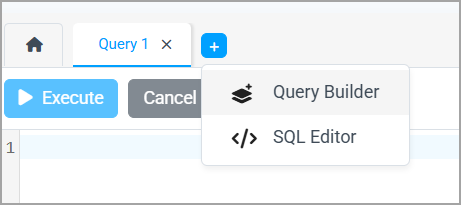
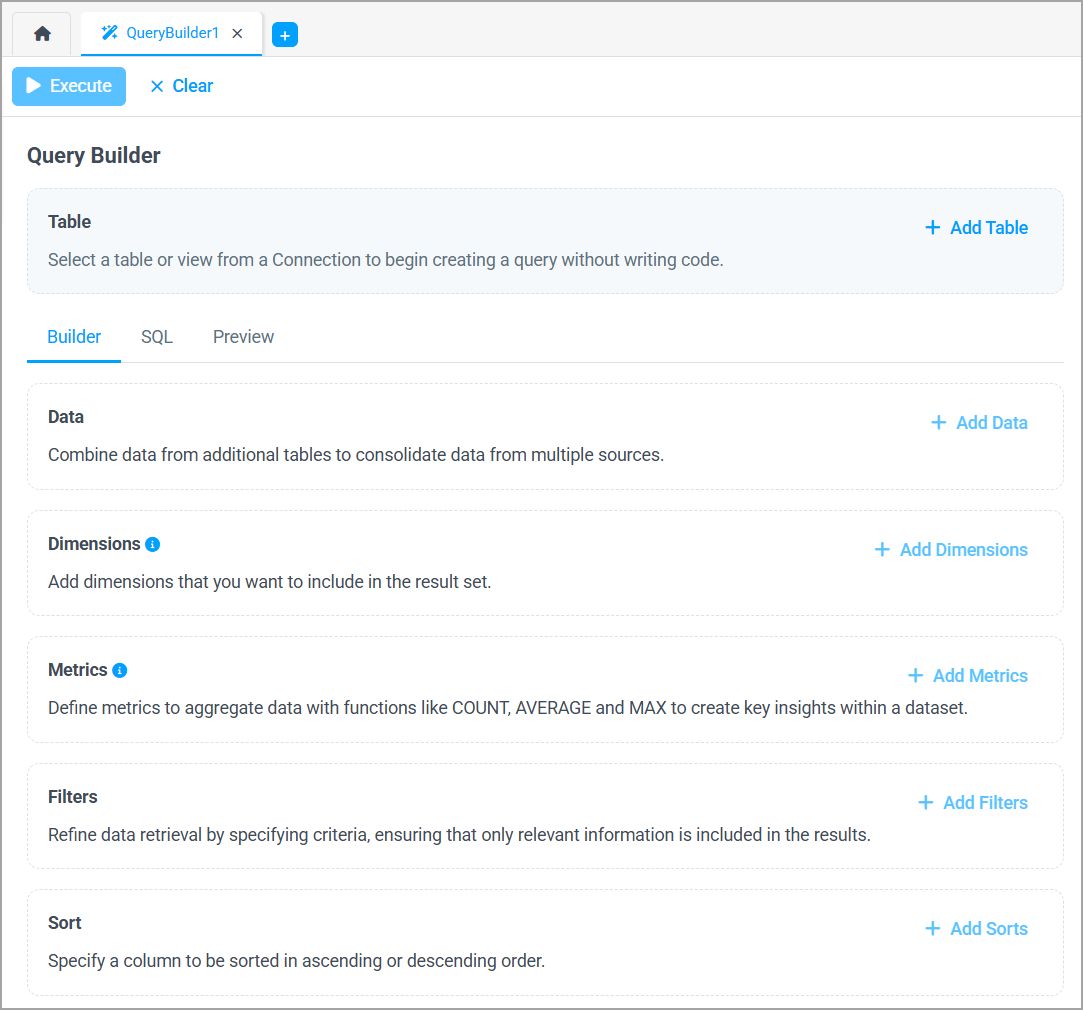
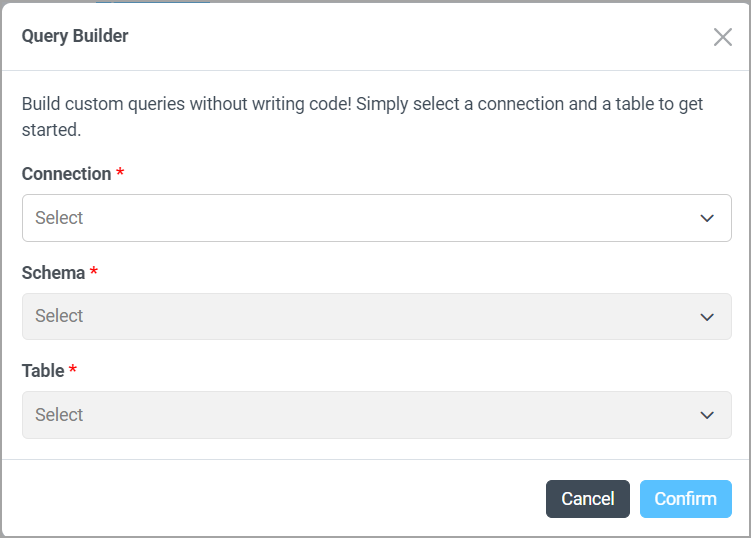
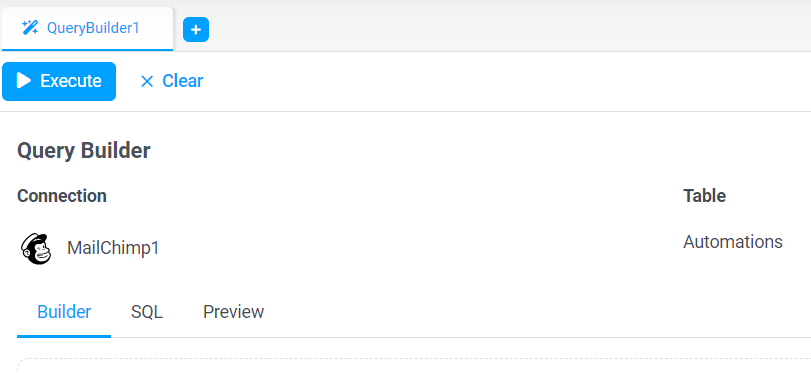
Select the table you are interested in querying from the Table field.
You can add additional tables in the Add Data step.
Combine Data from Additional Tables
The Query Builder can create queries from multiple tables. To add a table to your query, follow these steps: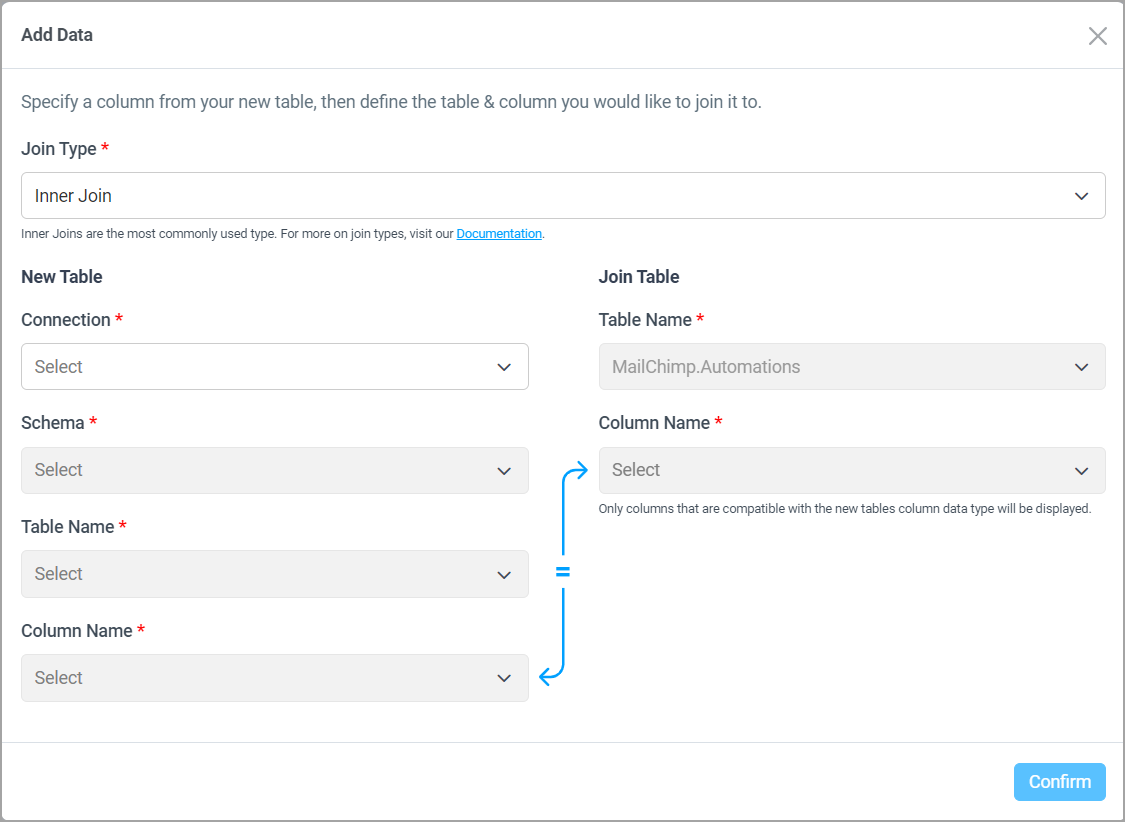
Choose a Join Type. The join types available in Query Builder are as follows:
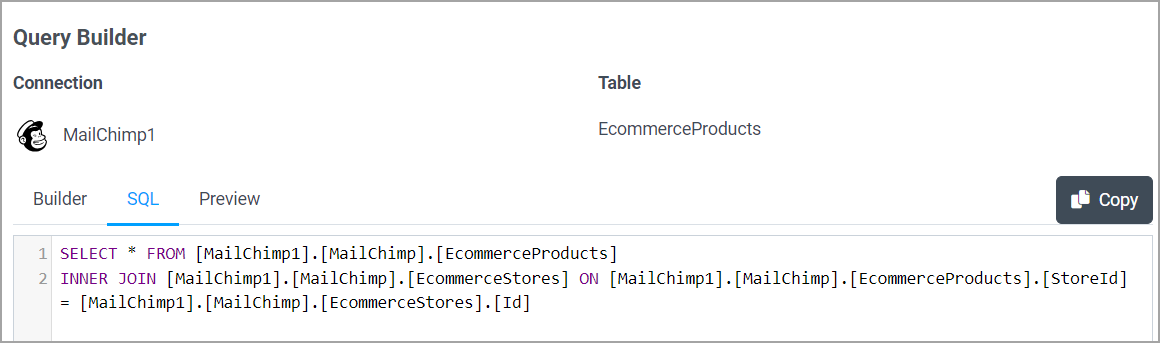
- Inner Join—this is the most common type of join. Connect AI combines records from the original and added table whenever there are matching values in a column common to both tables. It is equivalent to
INNER JOINin SQL. - Right Join—this type of join returns all records from the added (new) table, plus the matching records from the original table. It is equivalent to
RIGHT JOINin SQL. - Left Join—this type of join returns all records from the original table, plus the matching records from the added table. It is equivalent to
LEFT JOINin SQL. - Full Outer Join—this type of join returns all records where there is a match in either the original table or in the added table. If there is no match, the result contains
NULLvalues for columns from the table that does not have a matching row. It is equivalent toFULL JOINin SQL. This join results in the largest data set.
Select the Column Name in the original table and the new table. This is the column on which to join the two tables. Note that the joining columns must be of the same data type.
Click Confirm to save your new table. Your new table appears in the Query Builder in the Data section.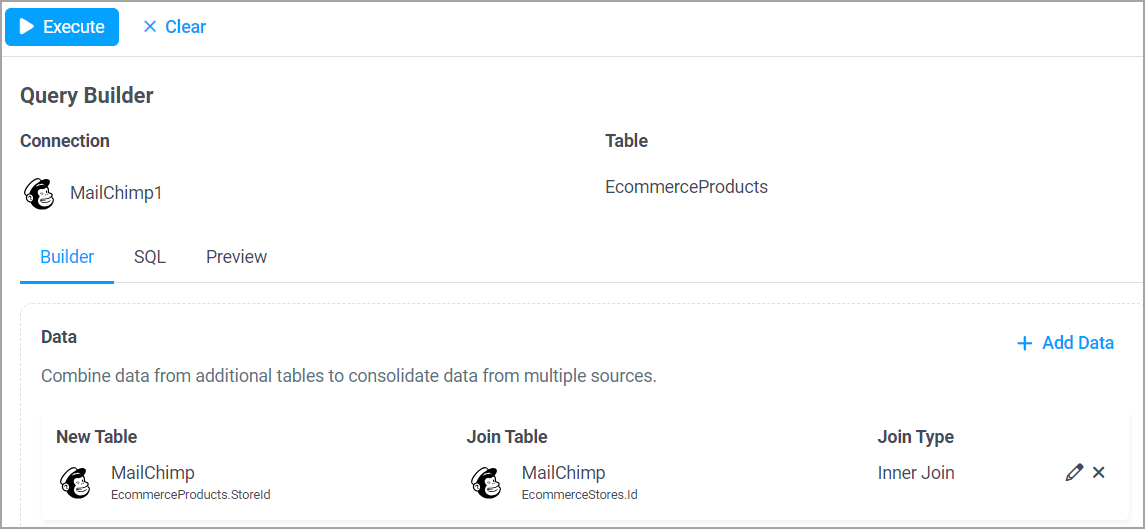
Add Dimensions to Results
A dimension is a categorical variable used to describe and segment data. It represents qualitative attributes and is often used to group or filter data. Dimensions help in breaking down data into more meaningful segments and provide context. For example, if you have sales data, the dimensions might include the sales region or the time period. To add dimensions to your Query Builder results, follow these steps:In the Dimensions section of the Query Builder, click Add Dimensions. An Add Dimensions dialog appears.
For each table in the query, select column names from the drop-down list. These are the columns you want to see in the result set.
Click Confirm. All the columns you selected appear in the Dimensions section of the Query Builder. Hover over the dimension to view the full table name.
Add Metrics to Aggregate Data
A metric is a quantitative measure used to assess performance or progress. It represents numerical values that can be aggregated, compared, or analyzed. Metrics provide the actual data points that are measured and analyzed. They are used to evaluate the performance and outcomes based on the dimensions. For example, you can display the total dollar amount of sales with SUM or count the number of unique clients with DISTINCT COUNT. To add metrics to your Query Builder results, follow these steps:Select the table name, column name, and the metric type to use to aggregate the results. Note that the metric types displayed depend on the column type. For example, string columns can use only COUNT or DISTINCT COUNT.
Click Confirm. The column and the metric to use appear in the Metrics sections of the Query Builder. Hover over the metric to view the full table name.
Add Filters to the Data
Filters refine your data so that only relevant information is included in your query results. The SQL operator to apply to your query depends on the data type of the column. If the column is a text data type, you can choose the following operators only:- Equal to
- Not equal to
- Between
- Equal to
- Greater than
- Greater than or equal to
- Less than
- Less than or equal to
- Not equal to
Click Confirm. The column, operator type, and value appear in the Filters section of the Query Builder.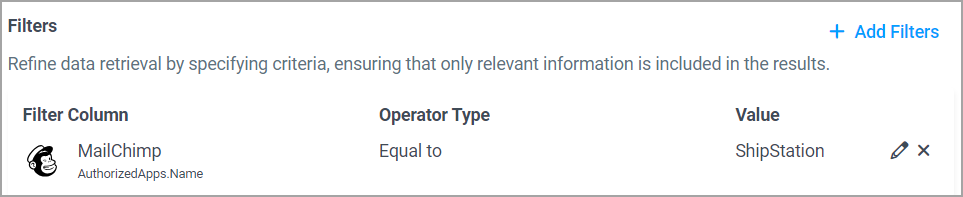
Click Add Filters to add more columns to filter, if desired. Choose whether all filter conditions must be true (And) or at least one of the filters are true (Or).
Sort the Data
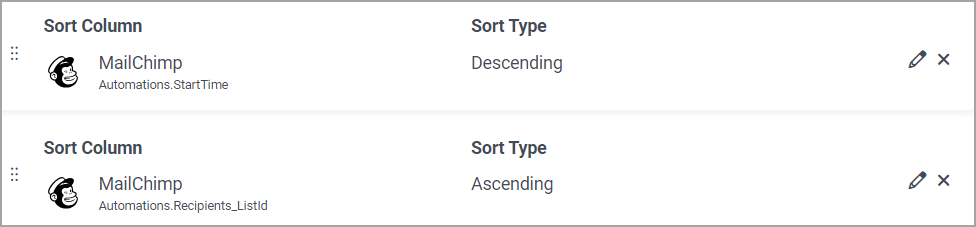
To sort the resulting data, follow these steps:Click Confirm. The table name, column name, and the sort type appear in the Sort section of the Query Builder.
Execute and Save the Query
To execute and save the query, follow these steps:When you are satisfied with the preview of your query, click Execute to execute the query. The query results appear in a new tab.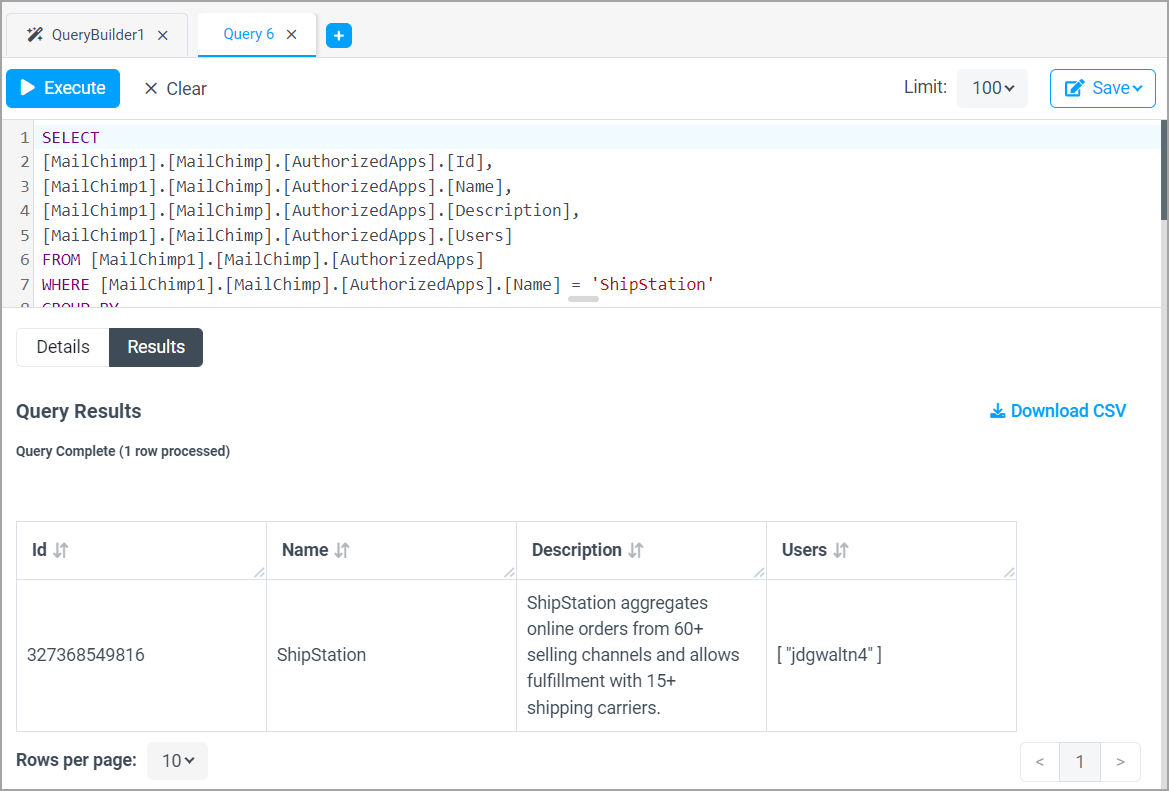
Click Save to save the query as a derived view, a saved query, or a scheduled query. If you save as a derived view or saved query, a Save dialog appears.
If you save the query as a scheduled query, an Add Job page appears. This is where you add details about the scheduled query job, such as how often it runs. See Scheduled Queries for details.
For more information about derived views, see Configuring Derived Views. For more information about saved queries, see Saving a Query.
Enter the saved query or derived view name, and click Confirm. The saved query or derived view appears in the Data Explorer.