Prerequisites
Before you can configure and use MuleSoft with Connect AI, you must first connect a data source to your Connect AI account. See Sources for more information. You must also generate a Personal Access Token (PAT) on the Settings page. Copy this down, as it acts as your password during authentication.Connect to Connect AI
To establish a connection from MuleSoft to Connect AI through the JDBC driver, follow these steps.Download and install the Connect AI JDBC driver.a. Open the Integrations page of Connect AI.b. In the Dev Tools section, click JDBC.c. Download and run the setup file.d. When the installation is complete, the JAR file can be found in the installation directory.
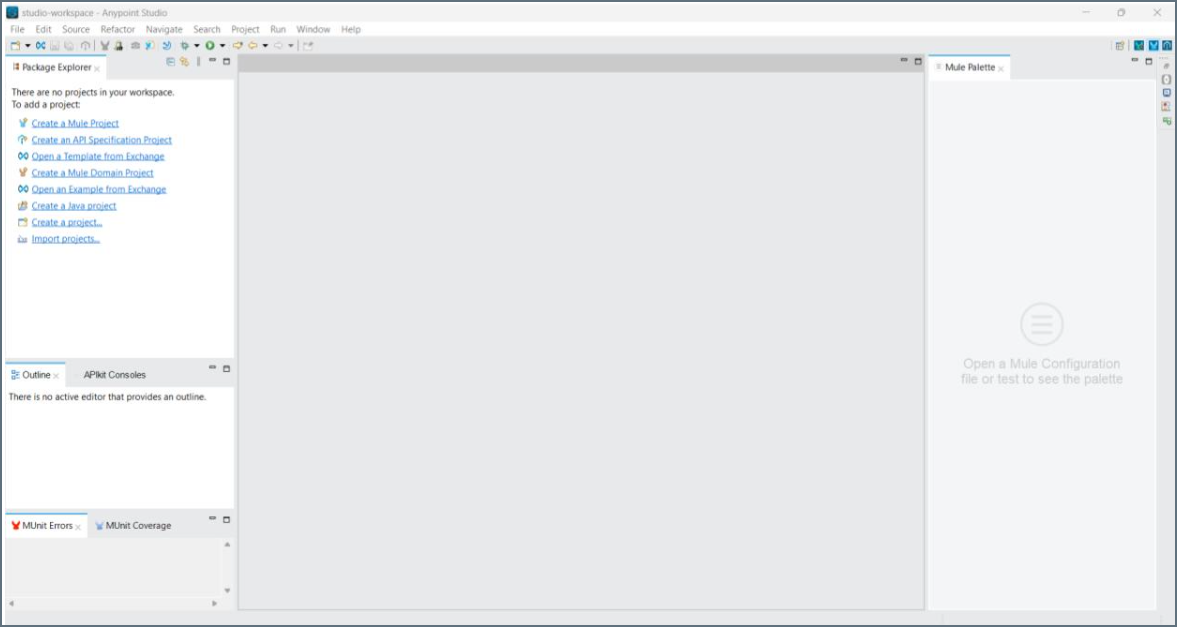
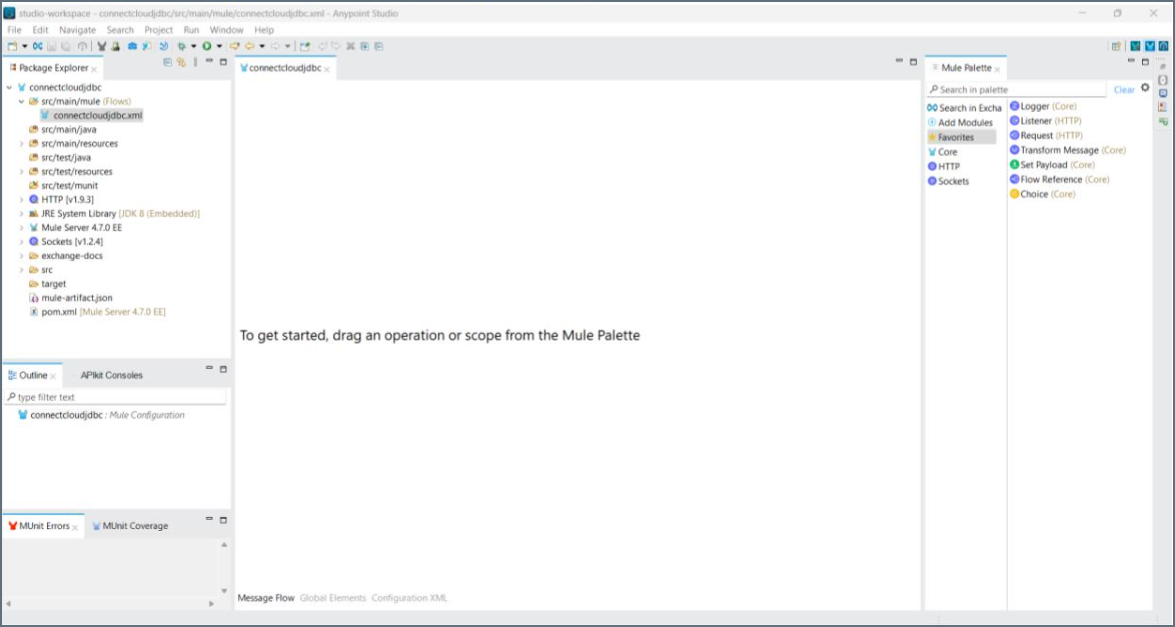
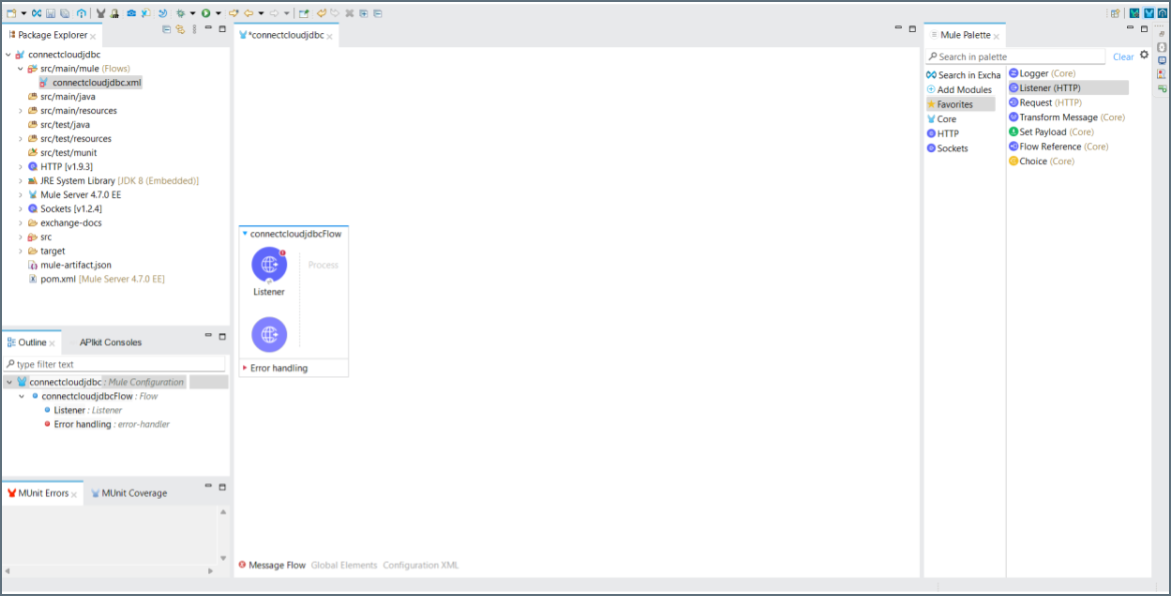
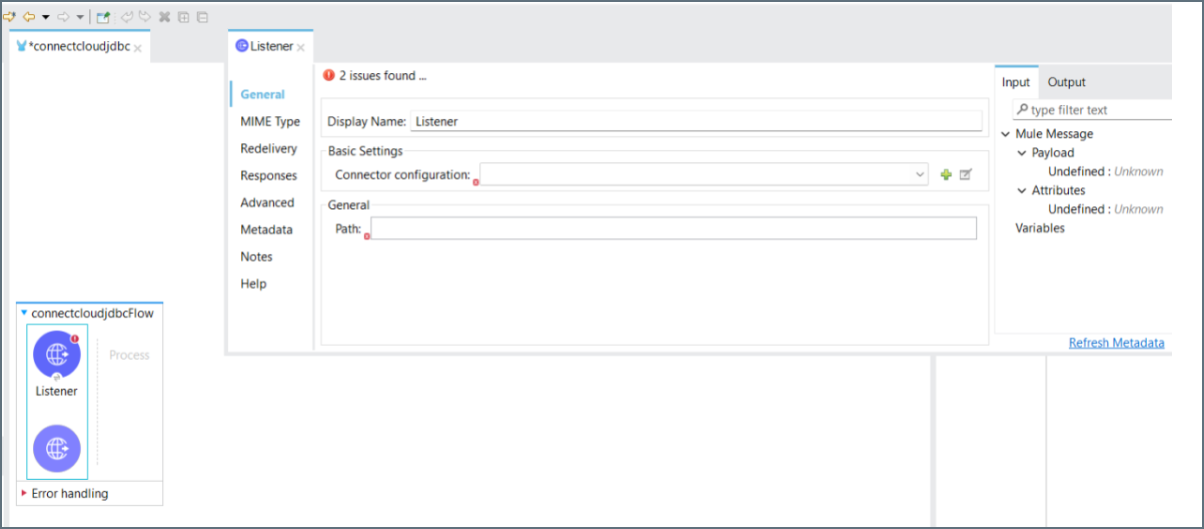
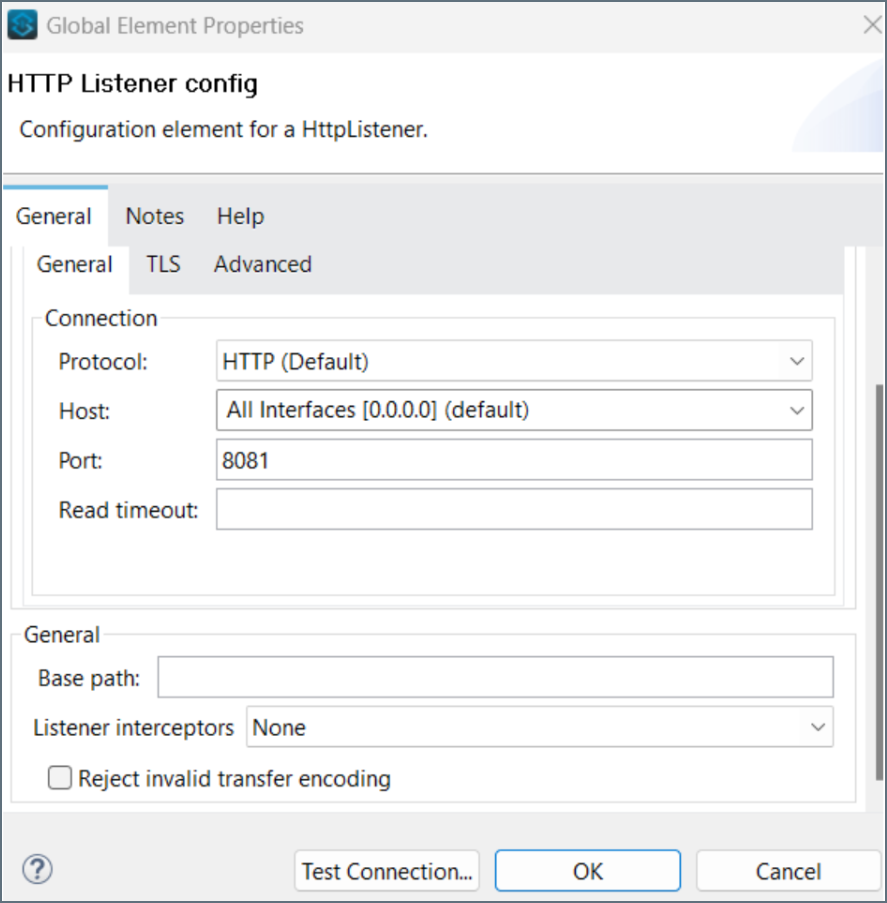
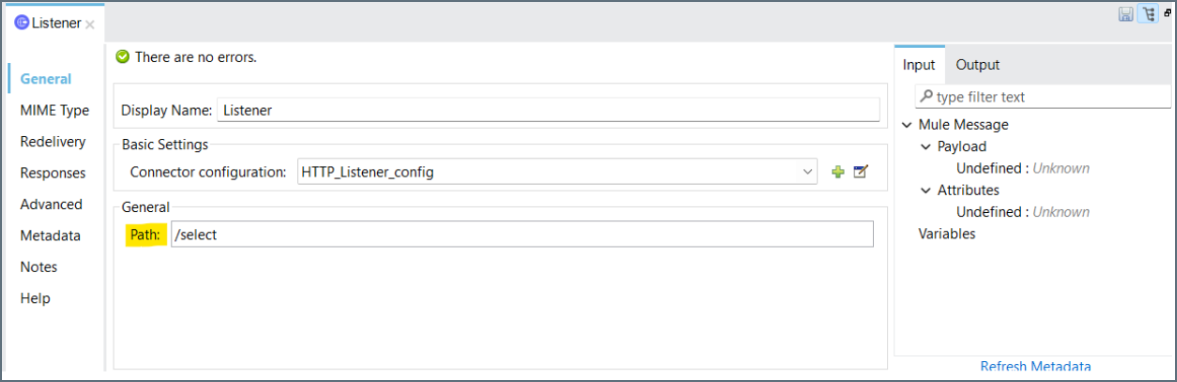
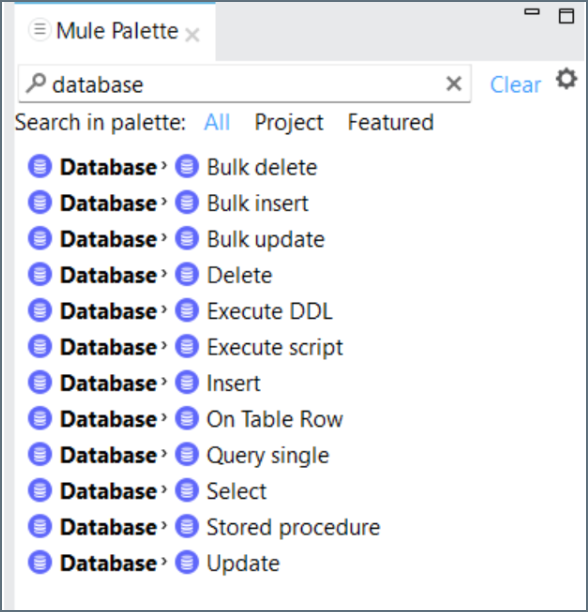
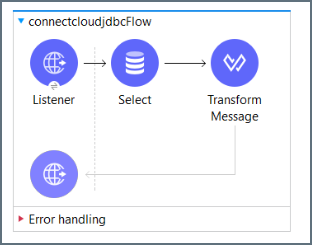
Drag the database operation you want to perform to the Message Flow area. For this example, we choose Select.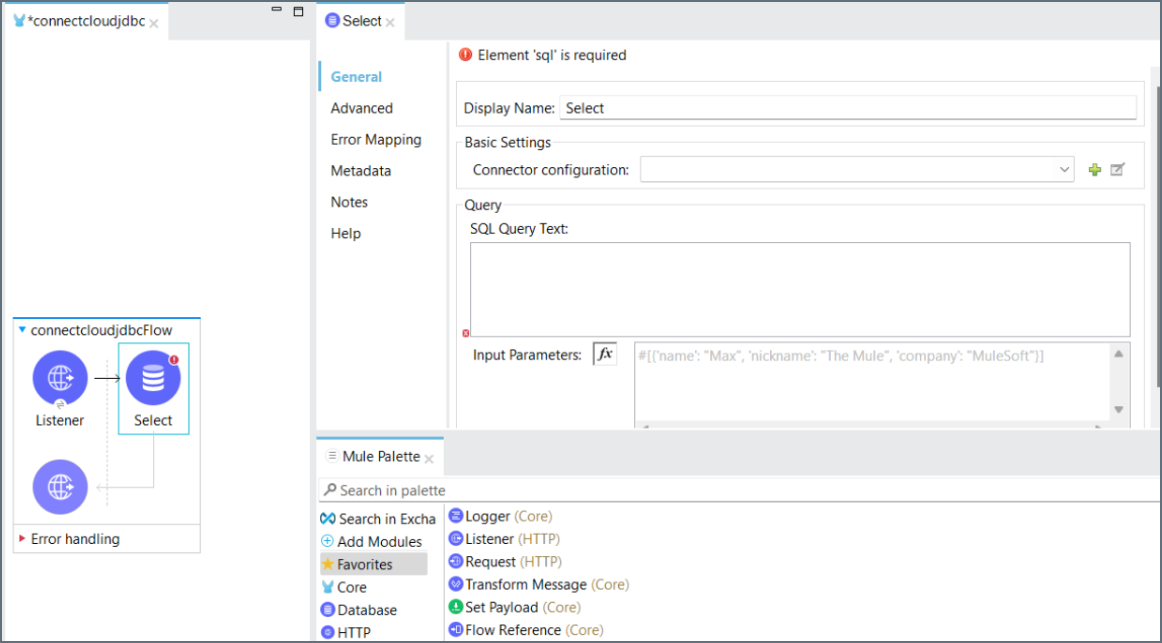
Click the Configure button to configure the JDBC driver. Select Use local file from the drop-down list.
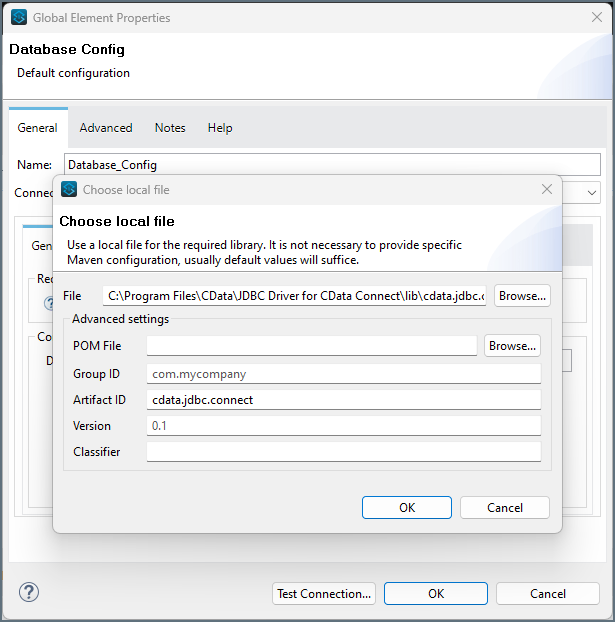
Provide the following information: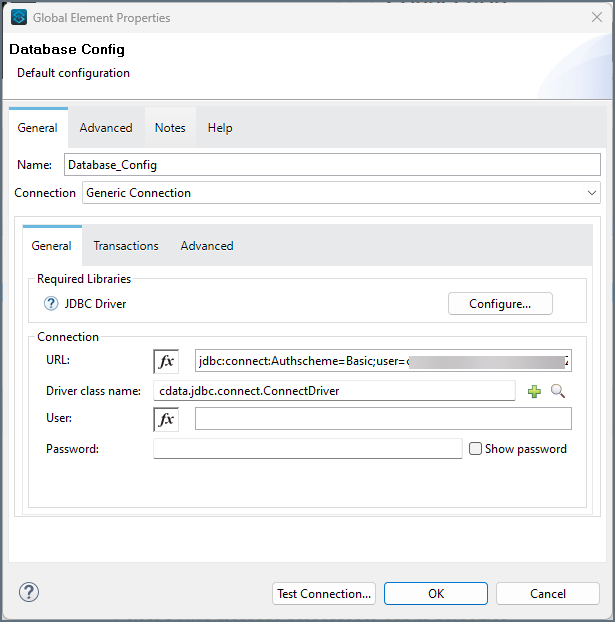
- URL–the URL for the connection, for example:
jdbc:connect:Authscheme=Basic;user=username;password=password.
the password is the PAT created in the prerequisites.
- Driver class name–
cdata.jdbc.connect.ConnectDriver
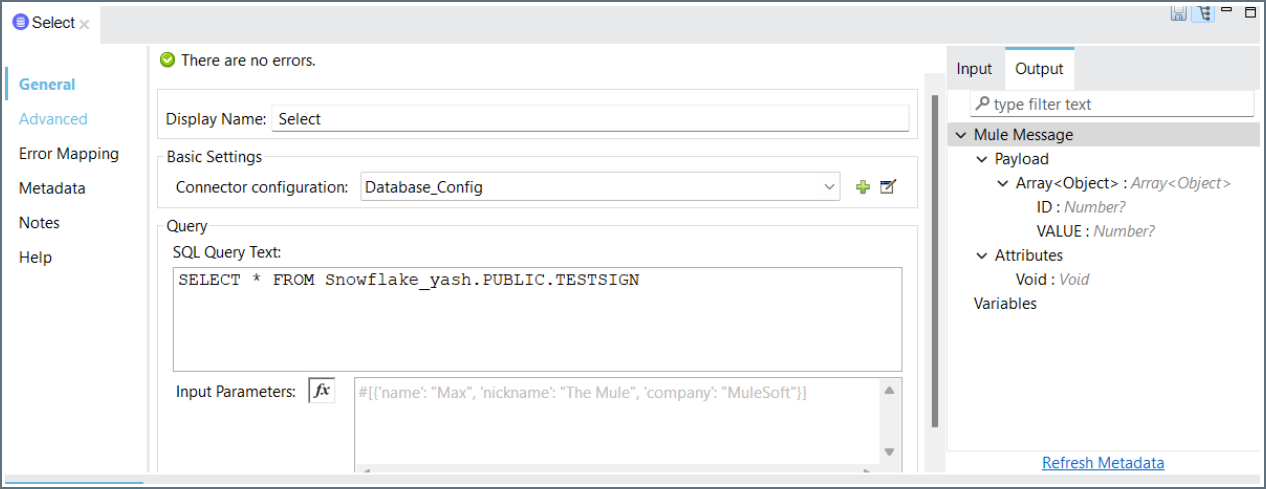
If the connection is successful, provide the SQL Query Text in the editor. You can see the metadata of the table on the right side in the Output tab.