

Prerequisites
Before you can use Claude with Connect AI, you must first connect at least one data source to your Connect AI account. See Sources for more information.Connect to Connect AI
Follow these steps to add a Connect AI connector in Claude:Sign in to https://claude.ai or create a new account.
In the bottom-left corner, click your user name and select Settings from the menu. The Settings screen appears.
In the Remote MCP server URL field, enter https://mcp.cloud.cdata.com/mcp.
Click Connect to the right of the connector and enter your Connect AI user name and password. You have now connected Claude to Connect AI.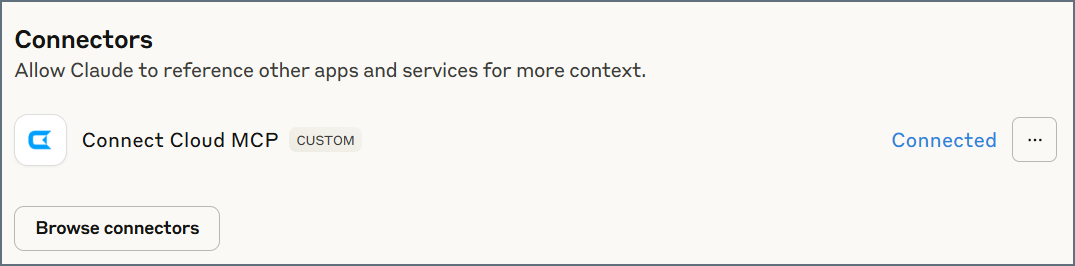
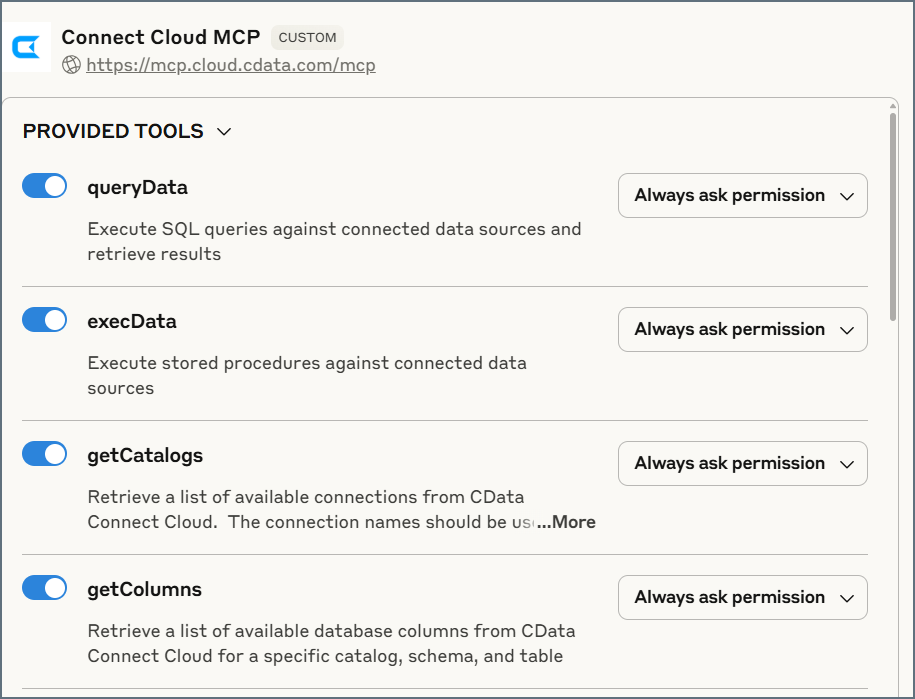
Review the provided tools and enable or disable specific tools made available by the server. In addition, determine whether you want unsupervised access to the tools, or whether you want Claude to ask your permission.
You can now start exploring your data with natural language prompts. Claude outlines the steps it uses to retrieve data from the source in Connect AI. Refer to CData’s prompt library for prompt ideas.
Claude’s setup process is subject to change. Refer to Claude’s documentation for the latest setup information.