Prerequisites
Before you can configure and use Cursor with Connect AI, you must first do the following:- Install the Cursor IDE.
- Connect a data source to your Connect AI account. See Sources for more information.
- Generate a Personal Access Token (PAT) on the Settings page. Copy this down, as it acts as your password during authentication.
-
Base64-encode your Connect AI credentials in the following format:
Base64("email:PAT").
Connect Cursor to the Connect AI MCP
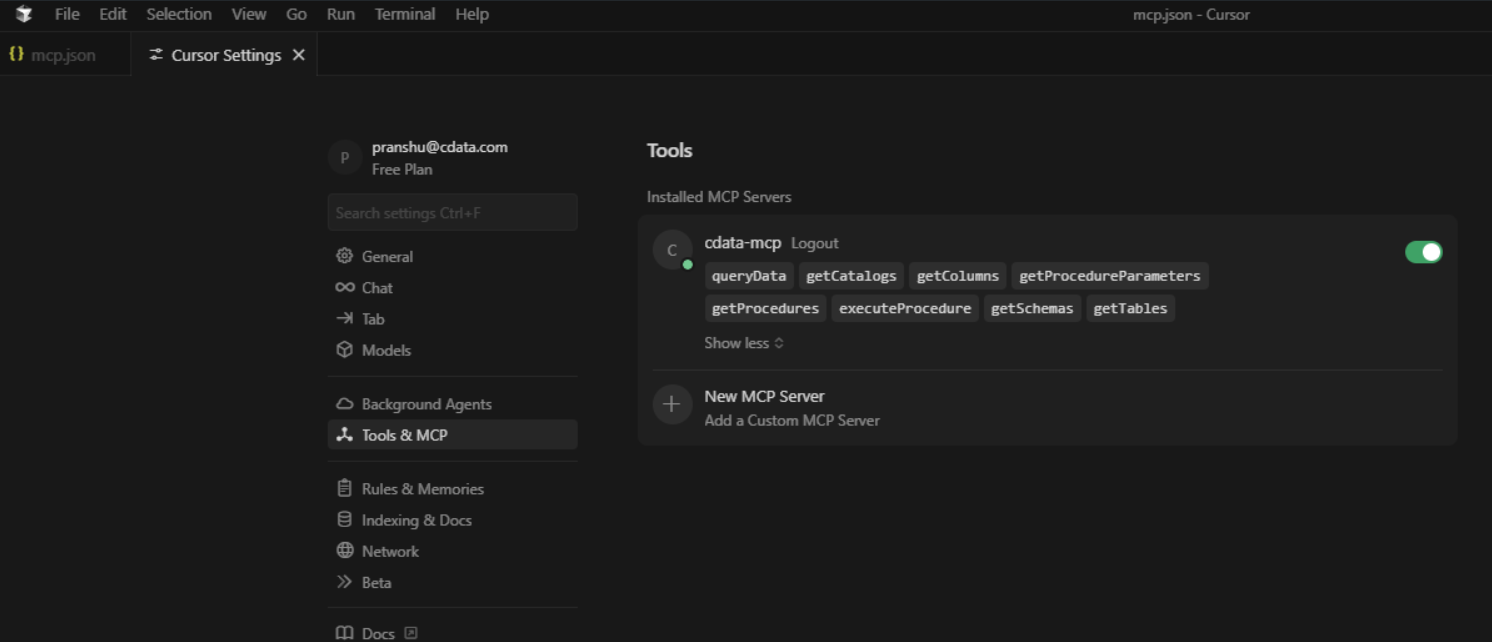
In the Cursor IDE, go to Cursor Settings. Then click Tools & MCP, and then click New MCP Server. The file
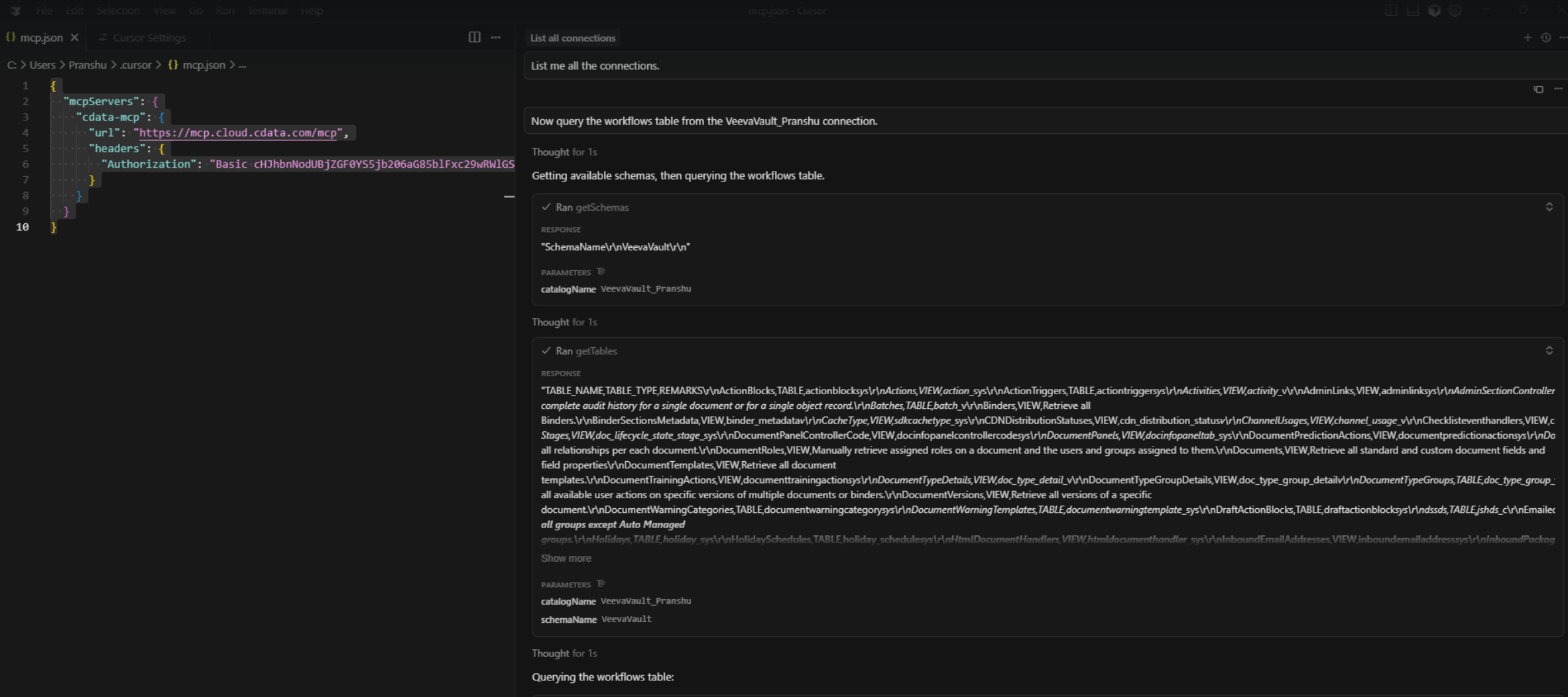
mcp.json opens automatically in the Cursor IDE.Copy and paste the following into the
mcp.json file. Replace the authorization header with the Base64-encoded credentials obtained in the prerequisites.Return to Tools & MCP under Cursor Settings. Confirm that Cursor is connected to CData’s MCP Server. You should see cdata-mcp listed with a green indicator.