Prerequisites
Before you connect, you must first do the following:- Connect a data source to your Connect AI account. See Sources for more information.
- Generate a Personal Access Token (PAT) on the Settings page. Copy this down, as it acts as your password during authentication.
Connect to Connect AI
To establish a connection from Databricks Lakehouse Federation to the Connect AI Virtual SQL Server API, follow these steps.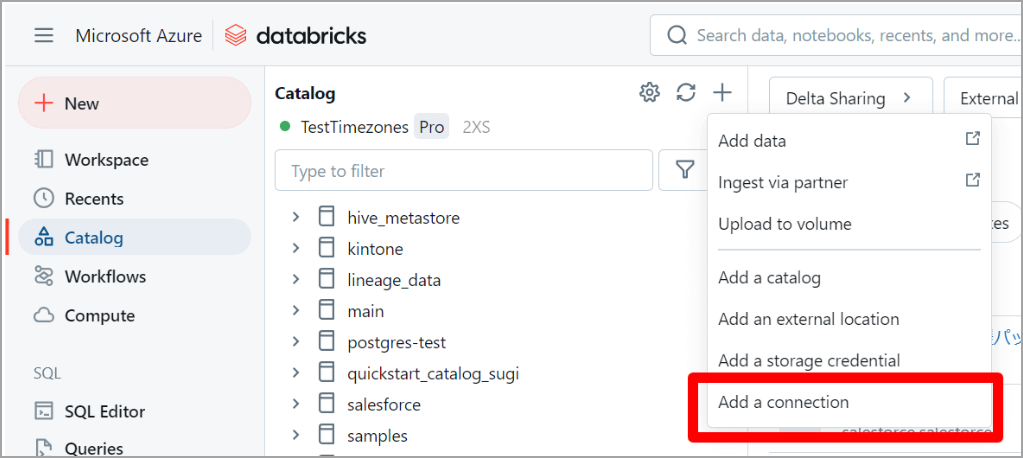
In Create Connection, enter the following: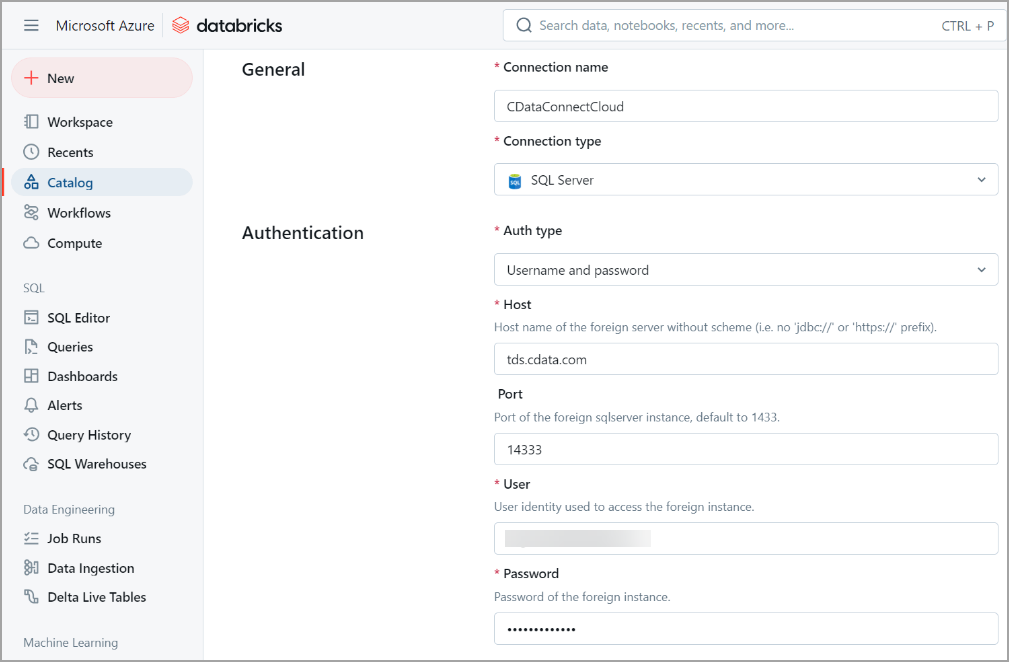
- Connection name—the user-defined connection name.
- Connection type—select SQL Server from the drop-down list.
- Auth type—select Username and password.
- Host—tds.cdata.com
- Port—14333
- User—enter your Connect AI username. This is displayed in the top-right corner of the Connect AI interface. For example, test@cdata.com.
- Password—enter the PAT you generated on the Settings page.
You now need to add the target database to the Catalog. In the navigation pane, select the connection you just created and click Create catalog.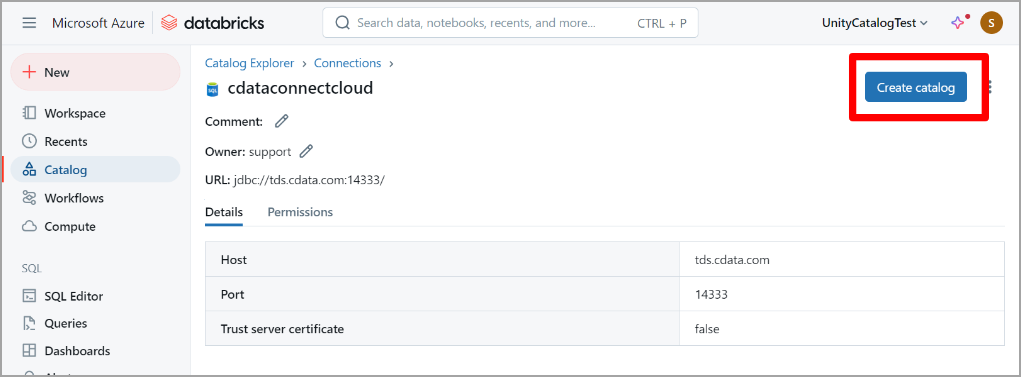
In the Create a new catalog dialog, enter the following information,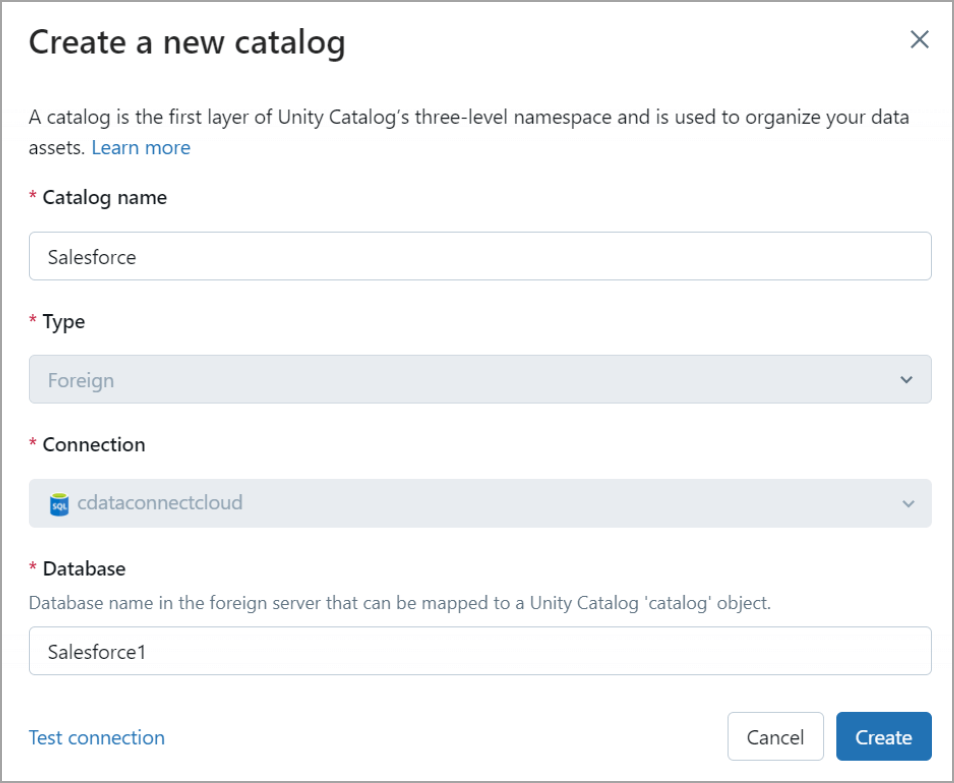
- Catalog name—enter a user-defined catalog name.
- Connection—this is the Databricks connection you defined earlier and selected.
- Database—enter the Connection Name of the Connect AI data source you want to connect to (for example, Salesforce1).
Click Create. If the catalog creation succeeds, a confirmation dialog appears. Click View catalog to view your new catalog.
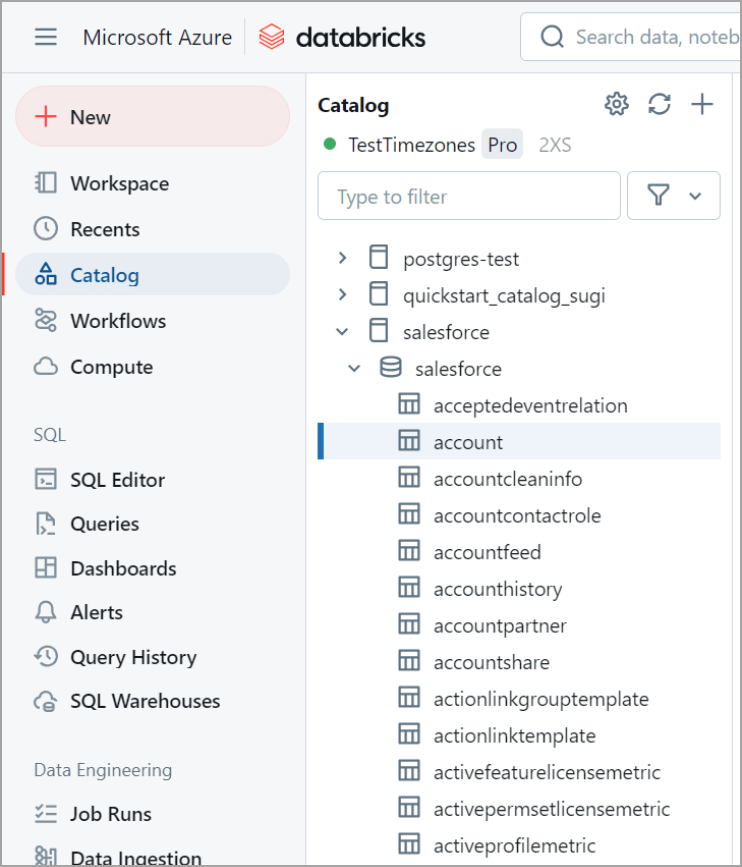
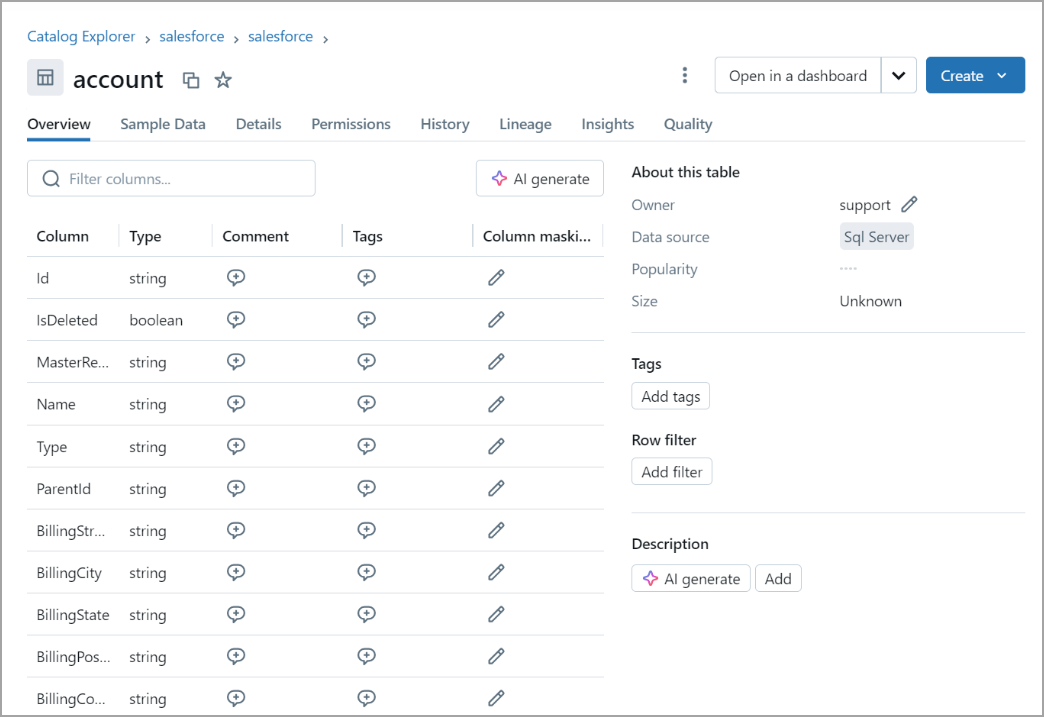
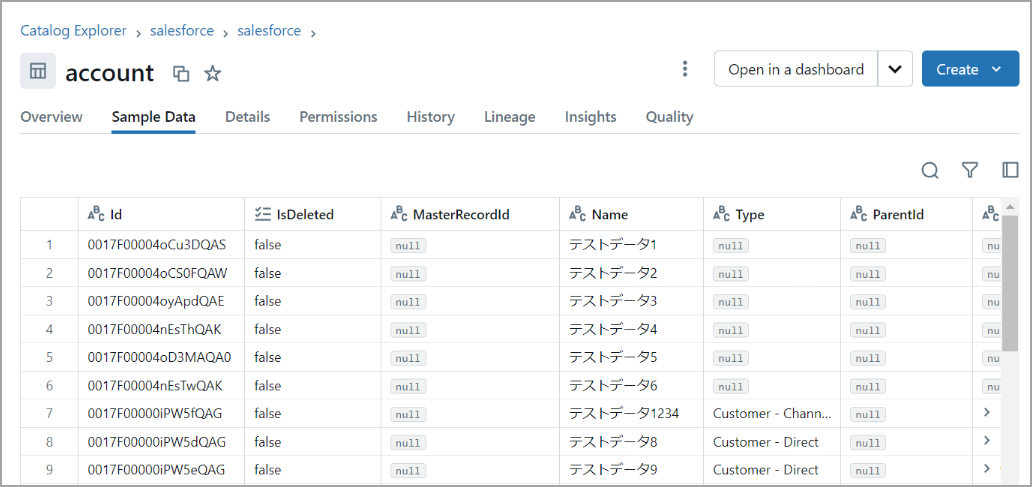
You can also return to Catalog in the navigation pane and find the catalog you just added. Expand the catalog to view the objects in the catalog.